

FAQs
welcome to zoodleapp.com
The holiday season is a busy period for both caregivers and pet parents. To accommodate this, service providers have the option to adjust their rates during this time.
Holiday rates are special rates established by service providers for specific occasions.
To manage holiday rates, service providers can log into their zoodle app account and update the rates for designated date ranges, such as during Diwali.
Please follow the steps outlined below to manage your availability efficiently.
welcome on zoodleapp.com
"Once your sitter profile is completed, it will be reviewed by ZoodleApp.com back office team within 24 to 48 hours.
Please note that review times may vary depending on the volume of submissions."
We may call you if needed or need any additional information.
Keep an eye on your email. We will keep you updated at all times.
Yes, you can work as both a sitter and a parent on the zoodleapp.com
To use zoodleapp.com as a parent, simply create an account and profile for your dog and start looking for the perfect sitter.
When you're ready to start caring for pets, follow the steps in this article "How can I create a sitter profile on the Zoodle website?" to create your sitter profile. Once your profile is complete, it will be sent to our sitter team for review.
When sitter profile is approved, you can start working as a sitter.
Thank you for choosing us.
Effective communication is essential for fostering a strong parent-sitter relationship. You can reach out to clients at any time through the chat feature on zoodleapp.com. Additionally, if a booking has been confirmed, you may contact them directly via phone.
To send a message, please follow these steps:
Log in to your zoodleapp.com account and navigate to your dashboard.
Locate your clients under the Pending, Upcoming, or Past Stays tabs.
Use the "Chat Now" option to compose and send a message if you have any questions.
Please follow the steps outlined below to edit or delete a pet profile on the Zoodleapp.com
Your inbox plays a crucial role in managing your business,
particularly when handling requests that you are unable to accommodate.
You have full control over setting your preferences, calendar, availability, and
deciding whether to accept or decline a pet owner's request.
If you receive a request, you are unable to accept, please follow these steps:
- You may
communicate with the requester and decline the request if necessary.
- Your Zoodleapp.com account provides a "Decline" option for this purpose.
- If the
sitter does not accept the booking, it will be automatically canceled.
- The booking is only considered confirmed once the sitter accepts the request and payment is processed.
welcome pet lover,
The "Set Out of Office" feature on your account enables you to temporarily suspend one or more of the services you offer on Zoodle.
When activated, your profile will not appear in search results for the selected services,
ensuring that you are not booked during periods when you are unavailable, such as when taking time off for vacation.
To activate this feature, simply log in to your sitter account and select the "Set Out of Office" option.
To do so, please follow the steps outlined below.
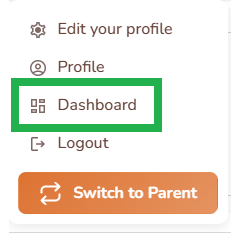
• Please login to your Zoodle account and navigate to the "Dashboard" section.
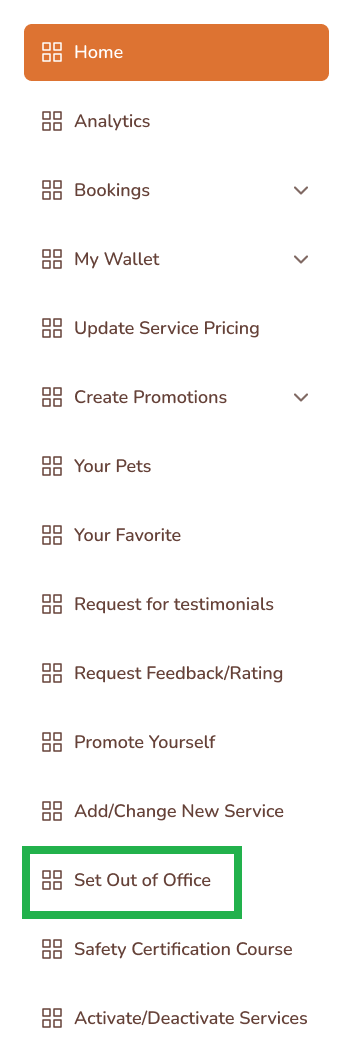
• In the Dashboard, locate the second option from the bottom, laeled "Set Out of Office," and click on it.
- To receive more relevant requests, we recommend specifying your pet and booking preferences. Below are the preferences you can set and manage through your account:
The maximum number of dogs you are willing to care for per day
Pet size preference
Whether you offer cat services
Whether you provide services for puppies (dogs under 1 year old)
Your cancellation policy
- To update these preferences, navigate to your profile and select the service you wish to modify. From there, you can adjust the number of pets you can accommodate, as well as edit your
"Thank you for choosing us! Our customer service team is here to ensure your complete satisfaction with every interaction."
For customer support at Zoodleapp.com, please visit the "Contact Us" section on the Zoodleapp.com website.
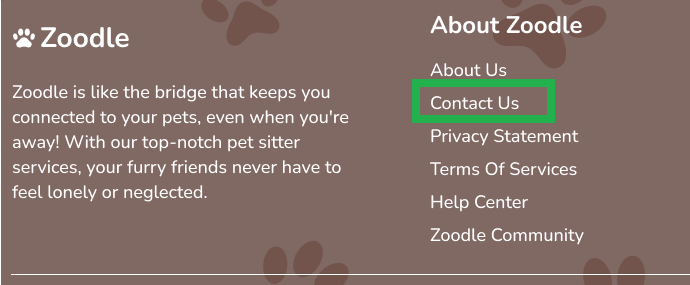
You will find all the necessary information in the "Contact Us" section, and you can reach out to us for assistance via phone or email.
"We strive to deliver the best customer support experience by resolving your queries quickly and efficiently."
welcome to zoodleapp.com,
"Certainly, we would be happy to."
"Steps to update your contact number on the Zoodleapp Mobile app."
Yes, you can update your phone number on the Zoodleapp.com website.
The steps to update your phone number on the Zoodleapp.com website are as follows.
Welcome to the zoodleapp Moblie app, pet owner
You can create your pet parent profile at no cost on the Zoodleapp Moblie app.
The steps to create a pet parent profile on the Zoodleapp Moblie app are as follows.
• If you are a pet owner in need of reliable care for your pet, this application is designed to connect you with qualified professionals who can provide the necessary services.
• Upon logging into the connected app, your parent profile will be automatically created.
• You may now proceed to enter your pet's information into the profile.
Welcome to the Zoodleapp.com website. Pet owner
You can book pet services through the platform. To begin, please create a pet parent profile.
The steps to create a pet parent profile are outlined below:
• Upon logging into the connected website, your parent profile will be automatically created.
• You may now proceed to enter your pet's information into the profile.
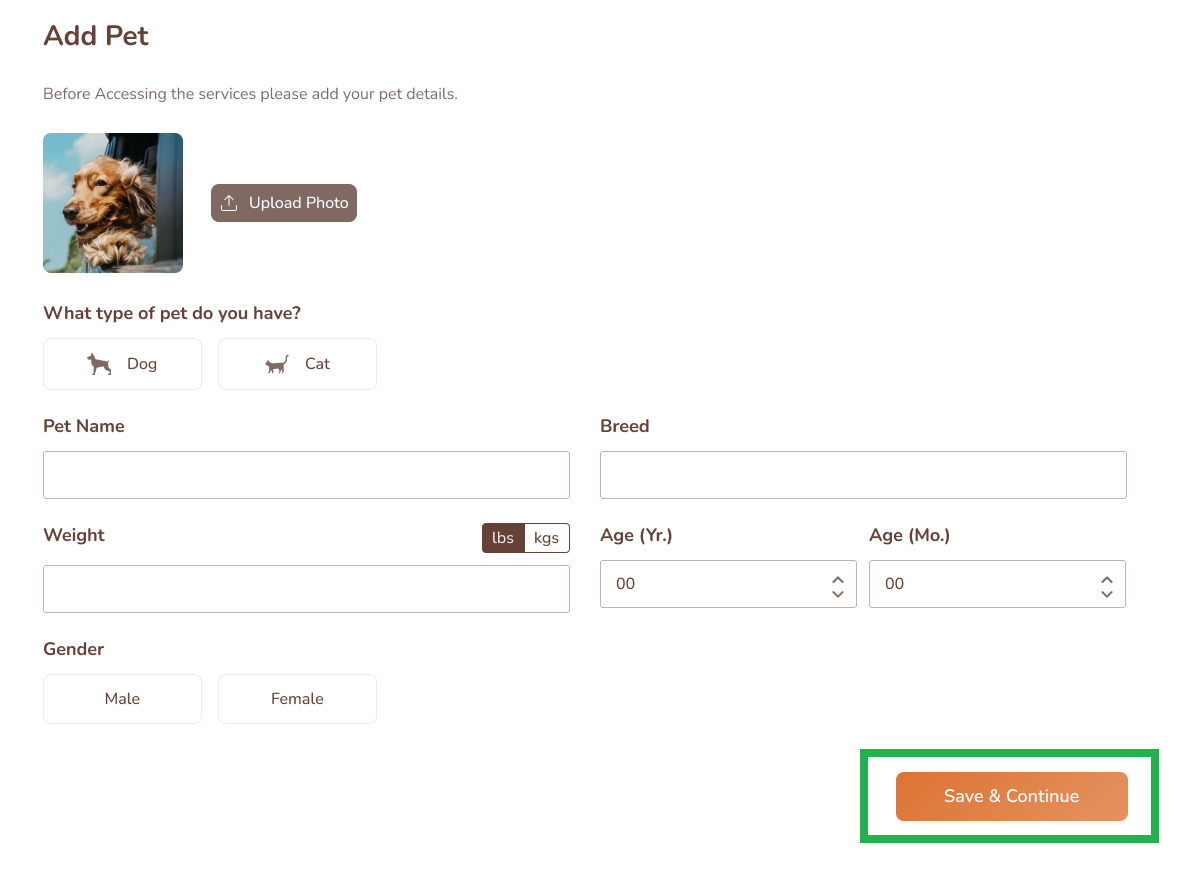
• Please provide the basic information about your pet.
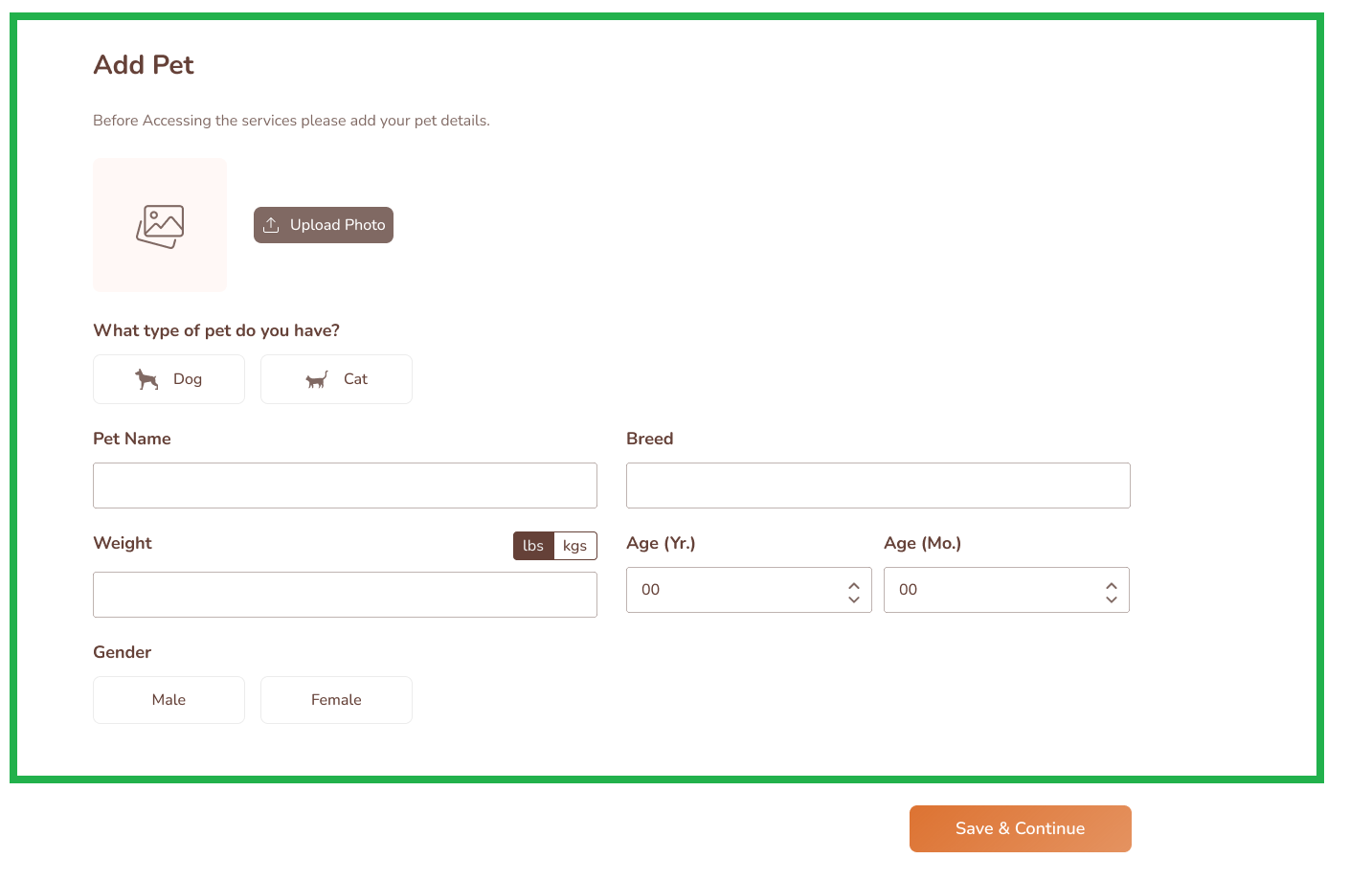
• Once all the details have been completed, please click the "Save and Continue" button to proceed
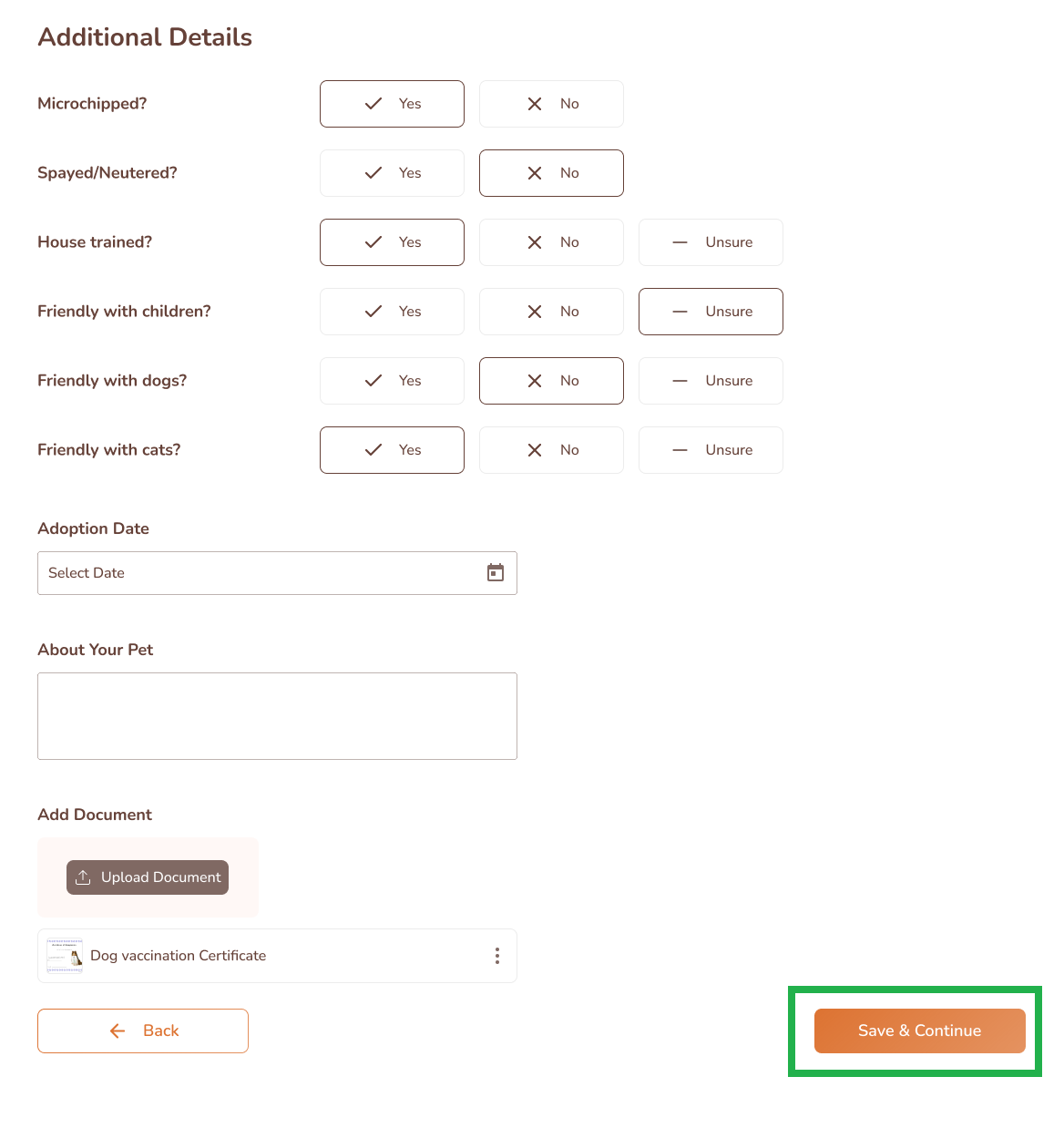
Please enter the additional details of your pet.
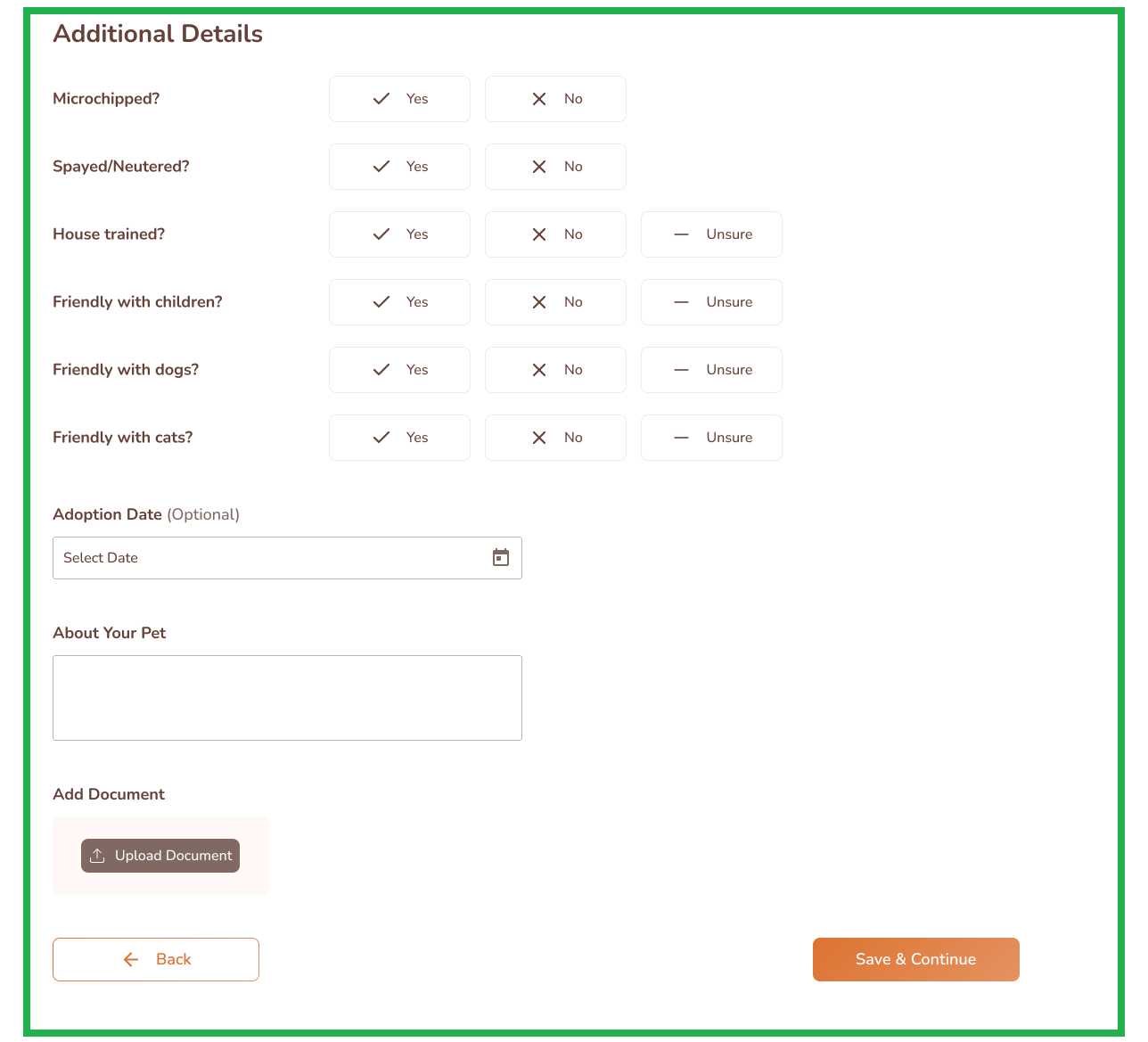
• If you have entered additional details about your pet, please click the "Save and Continue" button to proceed.
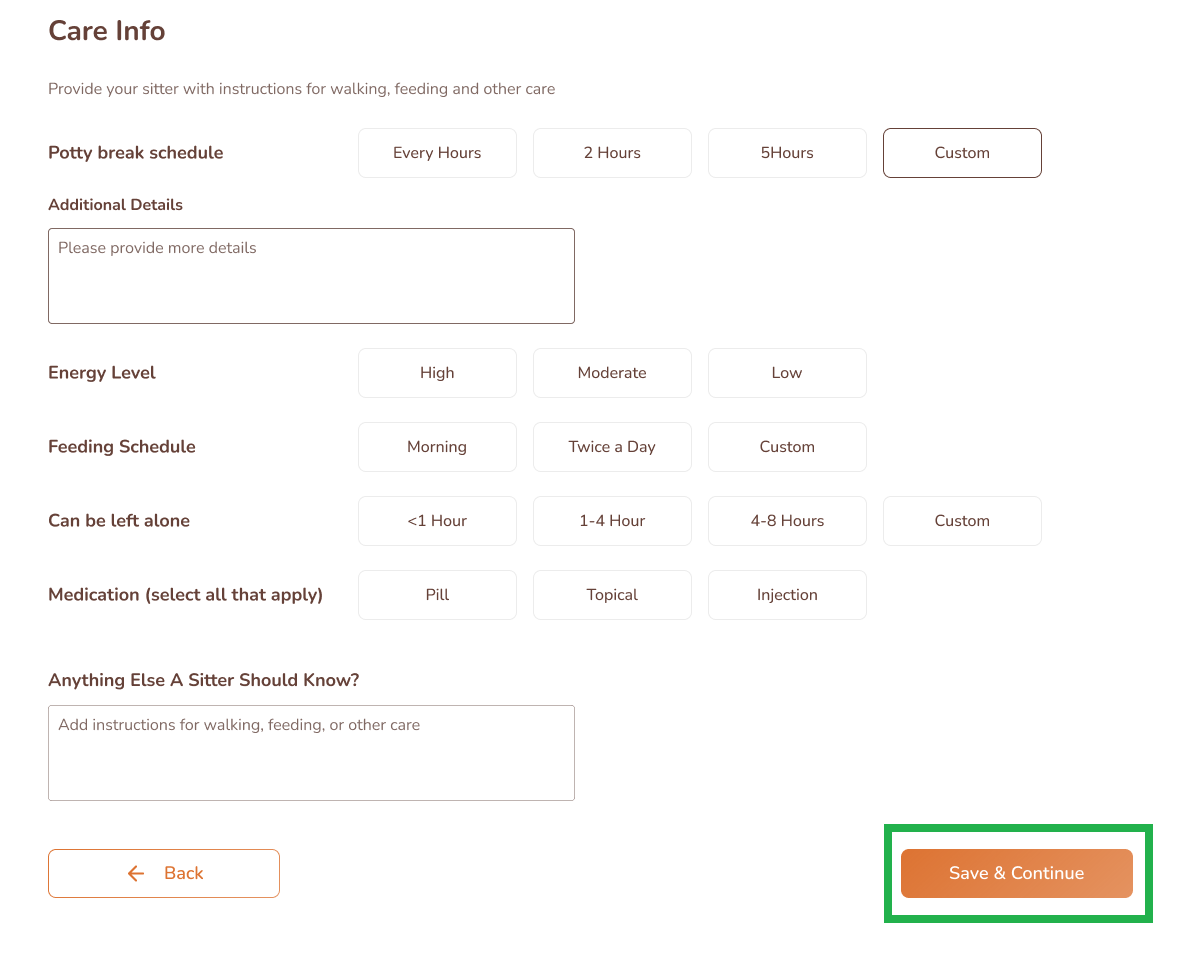
• Please provide your sitter with detailed instructions regarding your pet's walking schedule, feeding routine, and any other necessary care requirements to ensure your pet's well-being during their time under their care.
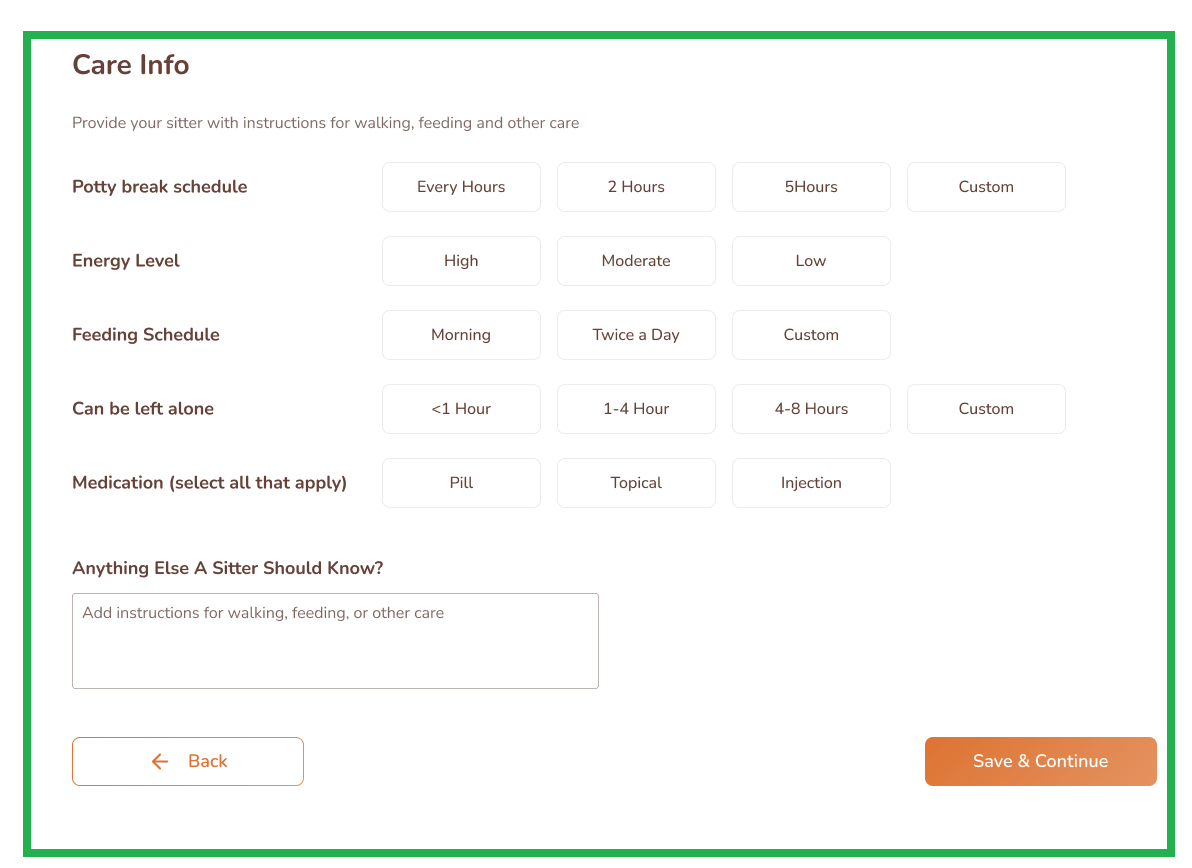
• After entering all the required information, please click the "Save and Continue" button to proceed.
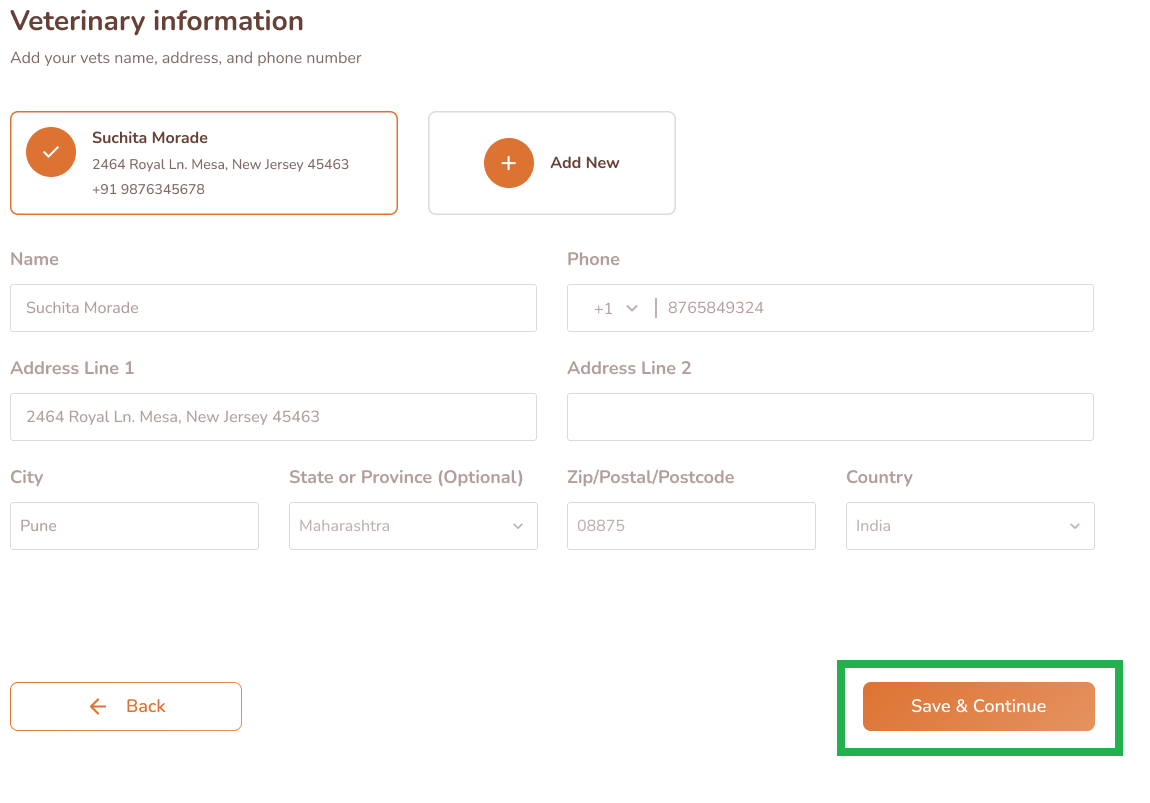
• Please complete the section with your pet's veterinary details.
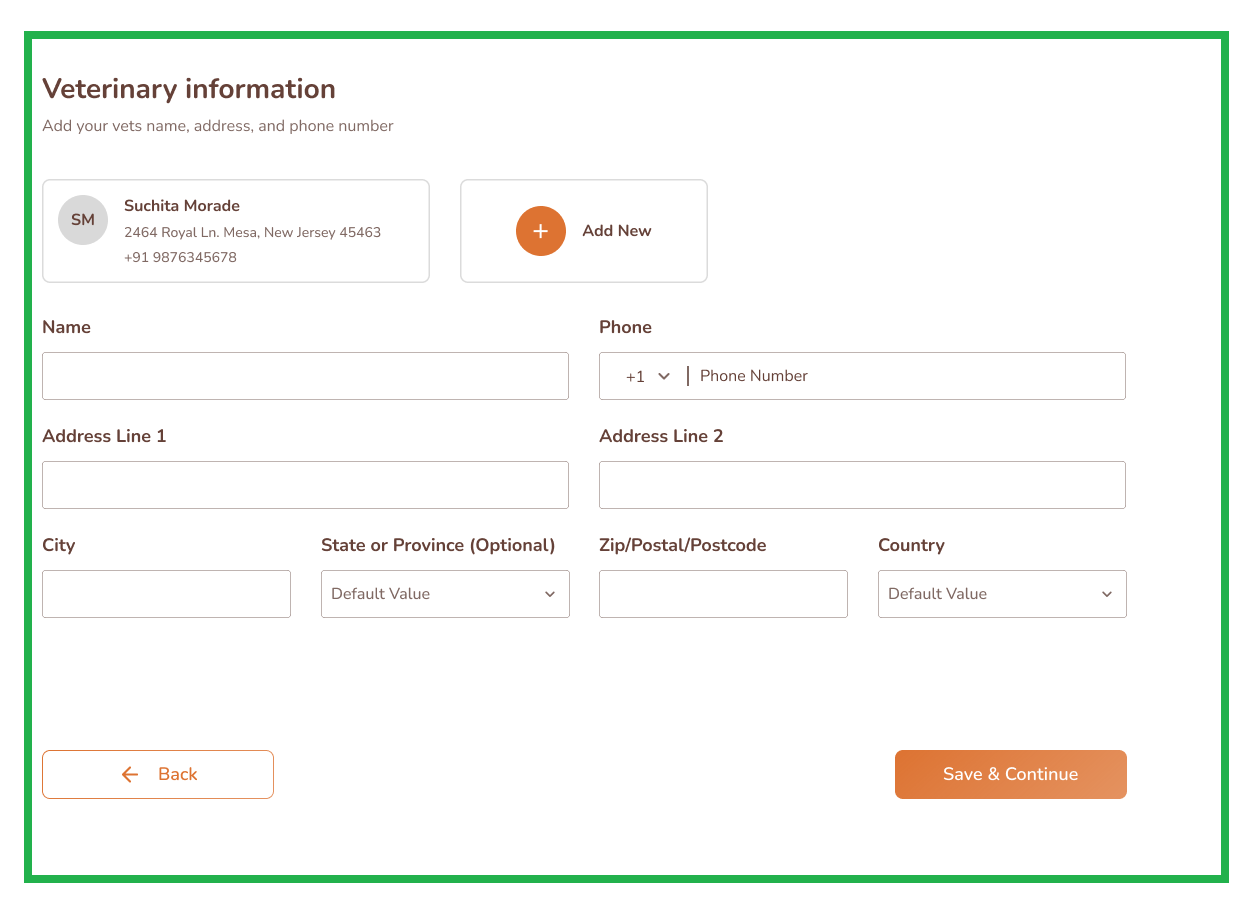
• Once you have completed the details, please click the "Save and Continue" button to proceed.
• Your parent profile has been successfully created. You may now proceed to book services for your pet.
Yes absolutely
"Kindly follow the steps below to reset your password for the Zoodleapp. Mobile app"
• Please select the "Forgot Password" option to reset your password.
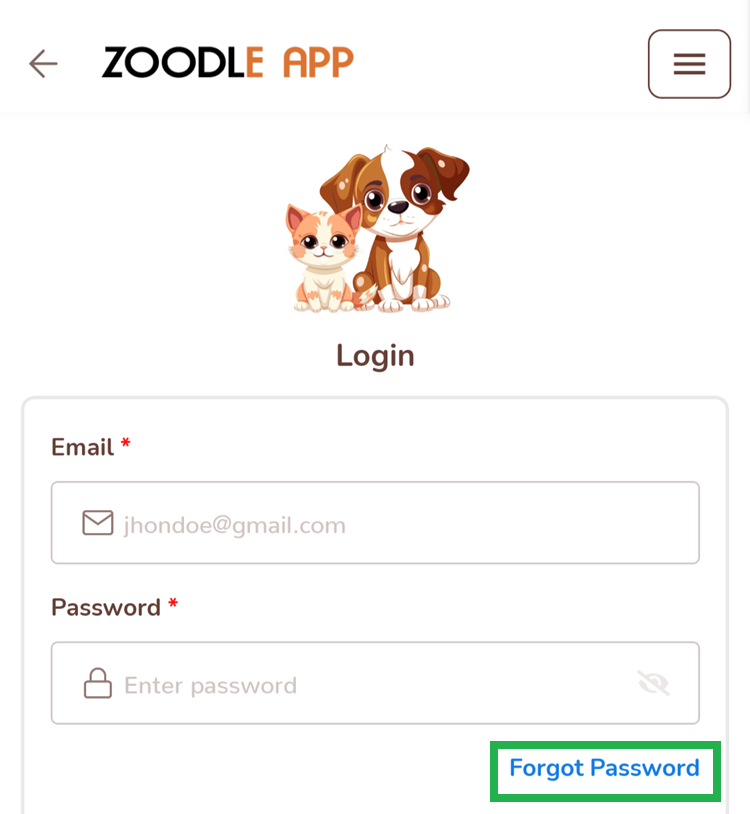
• To reset your password, please enter the email address you used during the registration process.
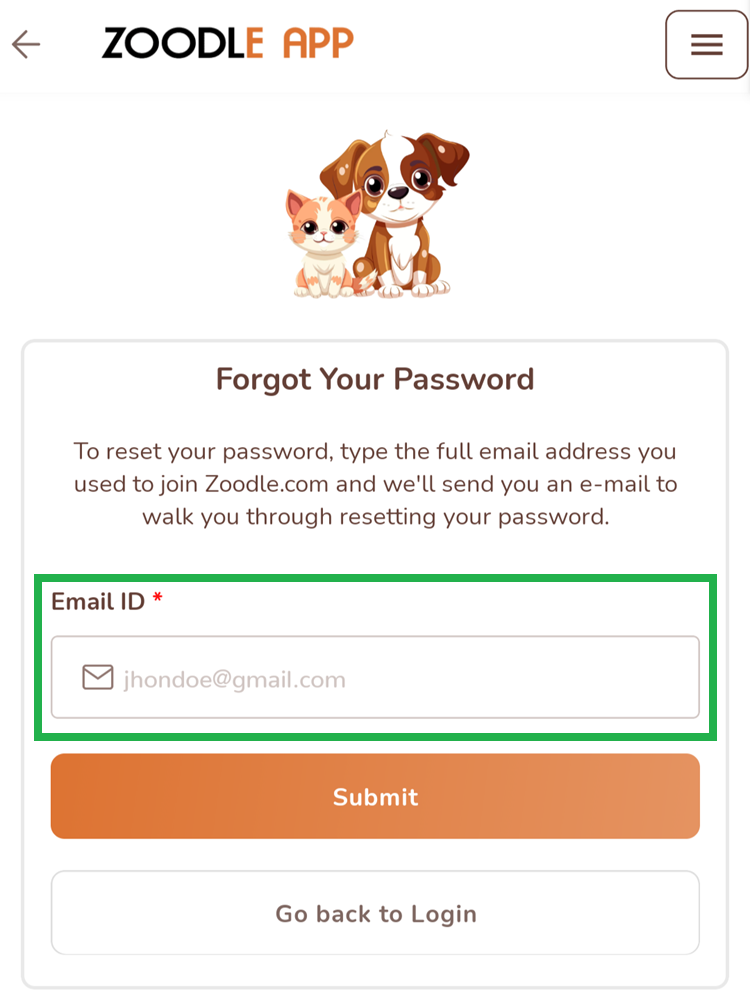
• Once you have entered your email address, please click the "Submit" button.
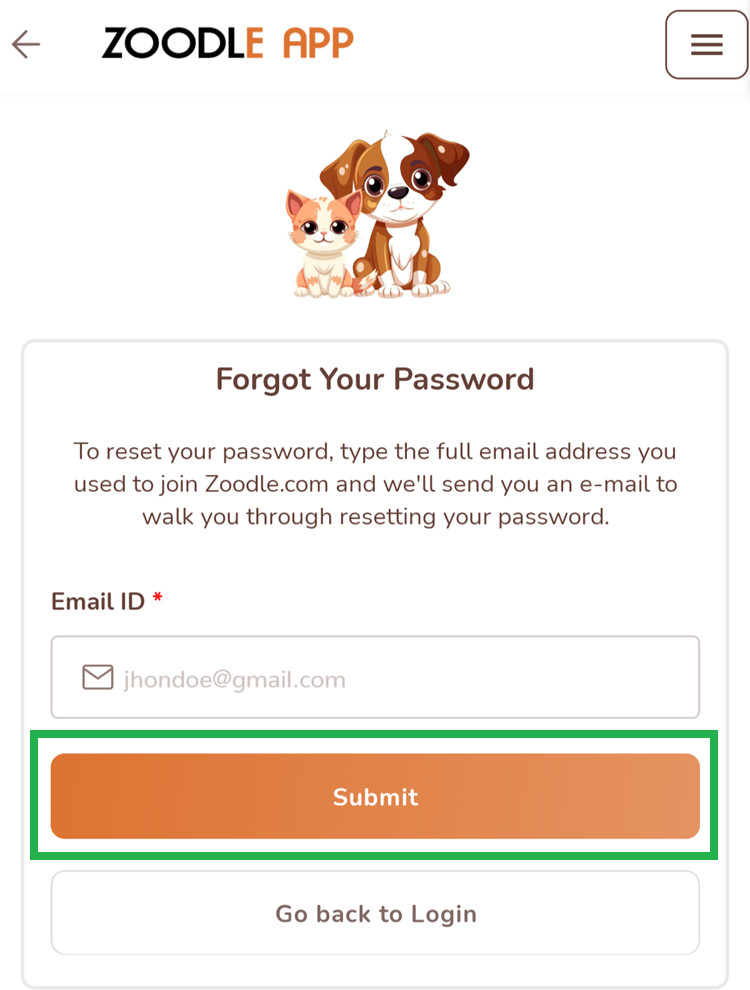
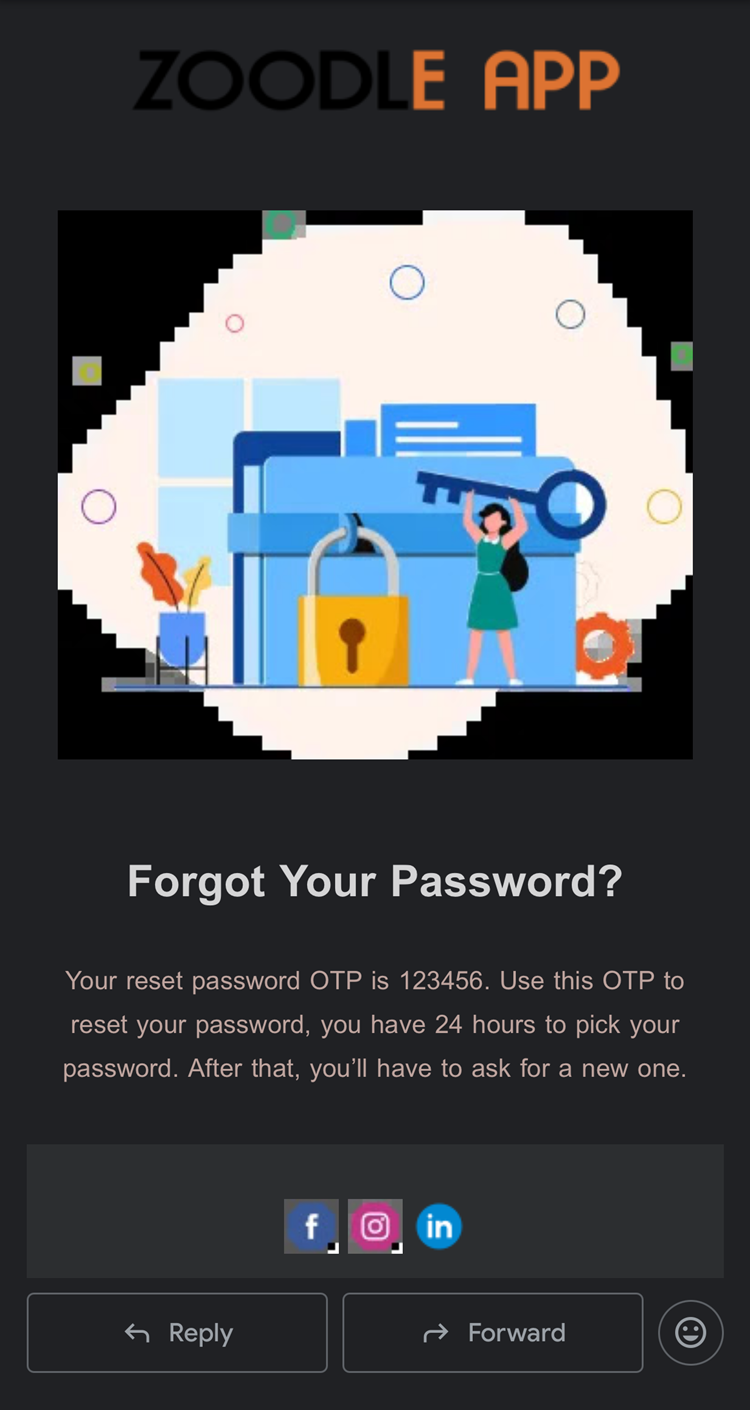
• Upon clicking the "Submit" button, an OTP will be sent to your email address. Kindly enter the OTP to proceed.
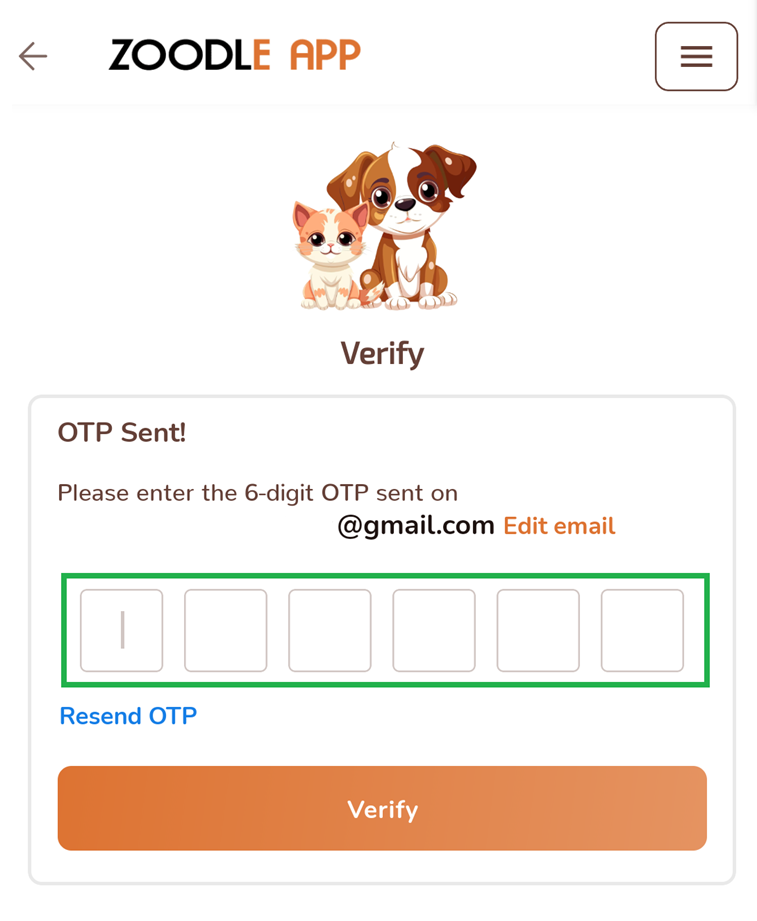
"Kindly check your email, as you should have received an OTP."
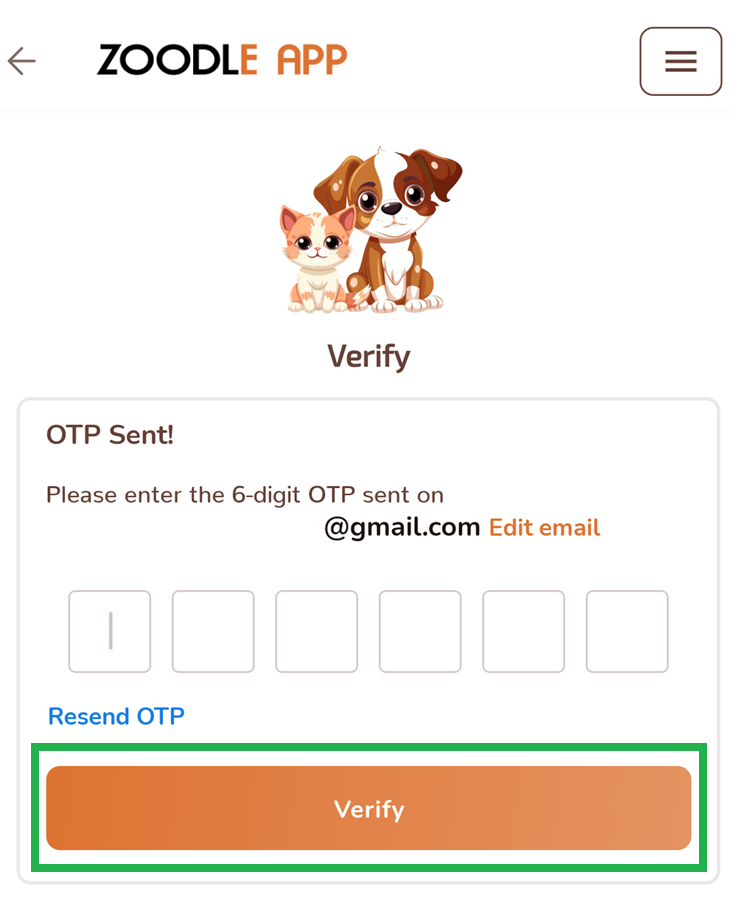
• After entering the OTP, please click the "Verify" button to proceed.
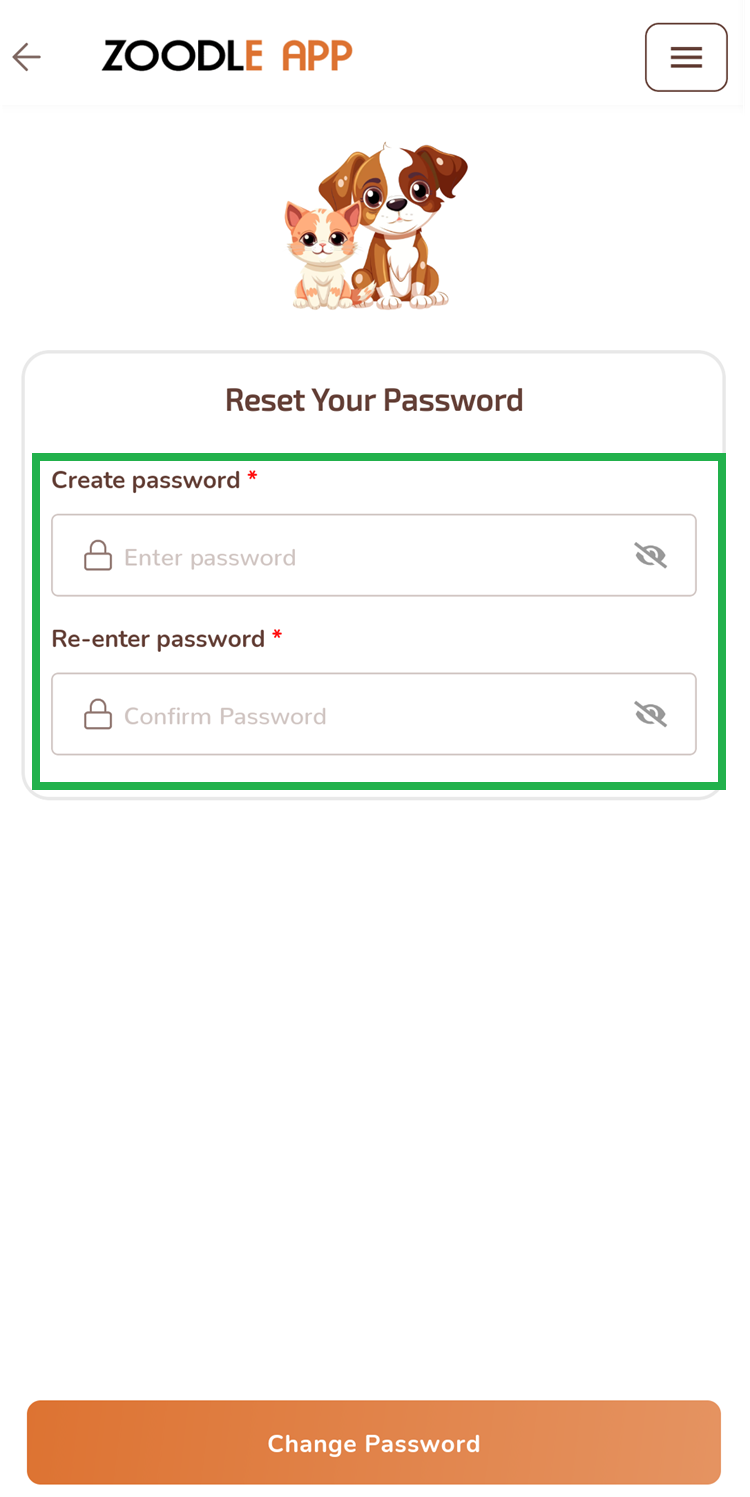
• Please enter the new password in the "Create Password" field.
• Once the new password is entered, click on "Change Password" to confirm.
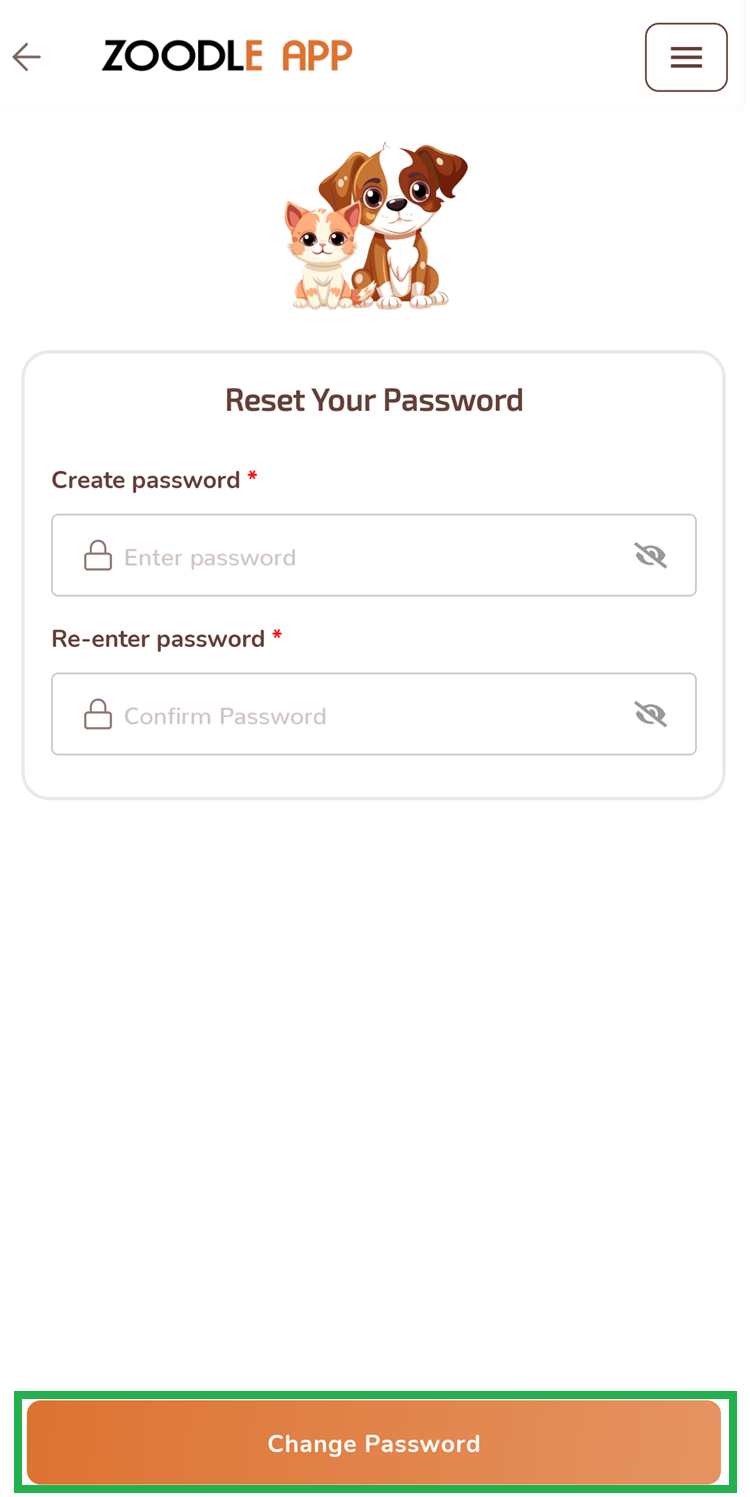
• Your password will be updated upon clicking "Change Password."
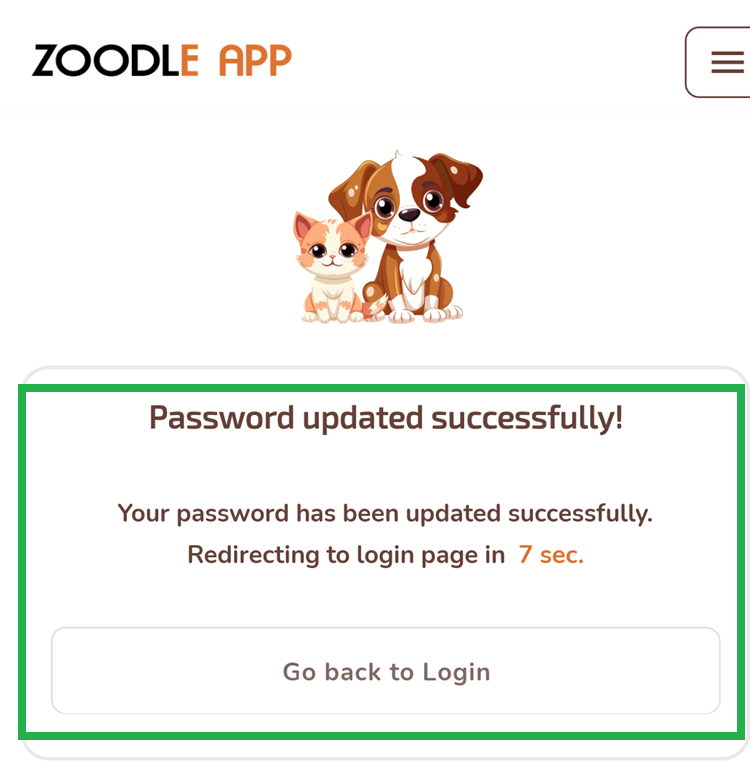
"Steps to reset a forgot password on the Zoodleapp.com website."
• Please select the "Forgot Password" option to reset your password.
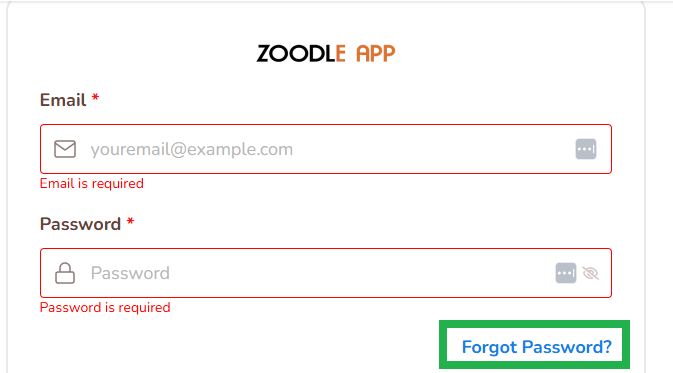
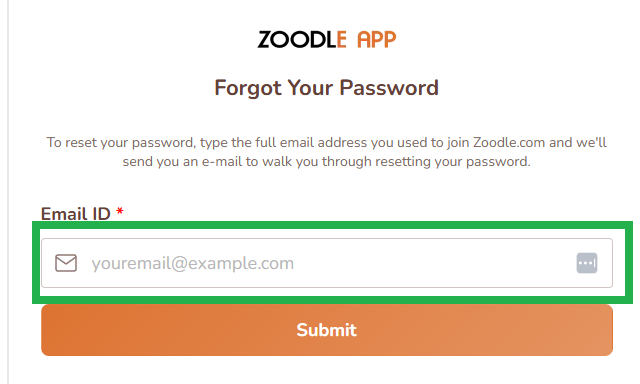
• To reset your password, please enter the email address you used during the registration process.
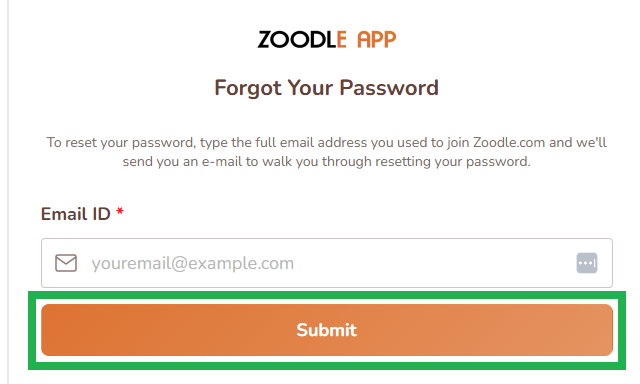
• Once you have entered your email address, please click the "Submit" button
• Upon clicking the "Submit" button, you will receive a link to reset your password via email.
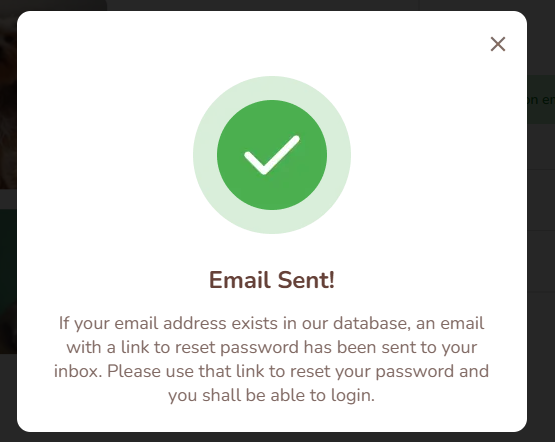
• Kindly check your email and click on the "Reset Password" option.
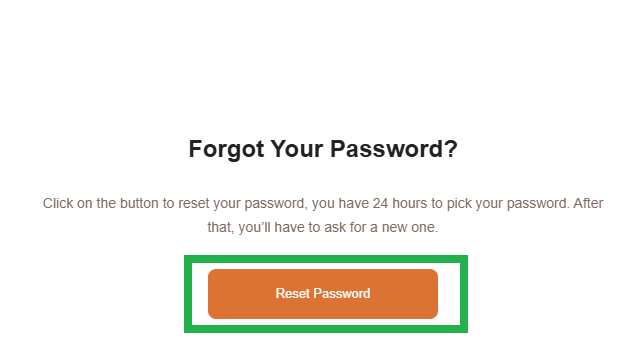
• Upon clicking the "Reset Password" option, you will be prompted to create a new password.
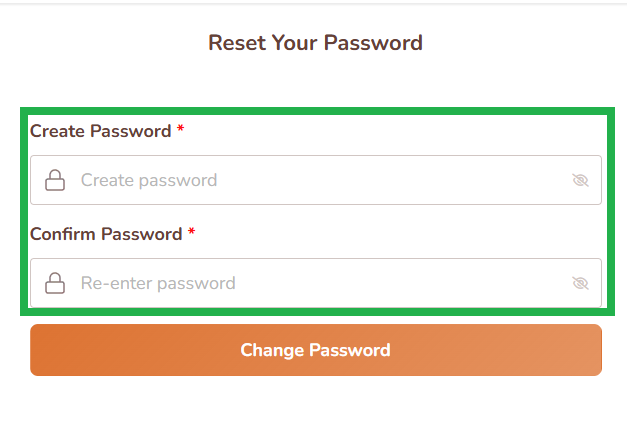
• After entering your new password, please click the "Change Password" button.
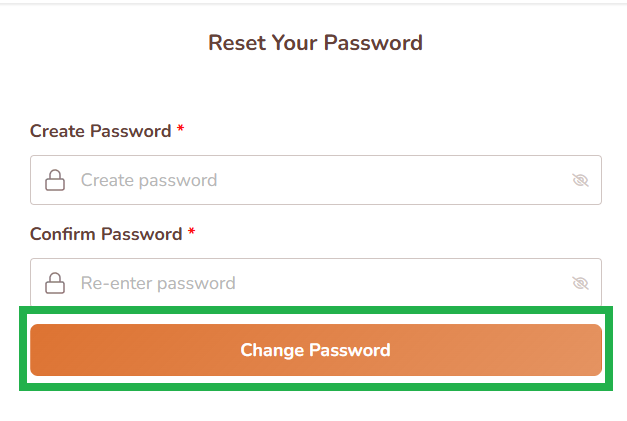
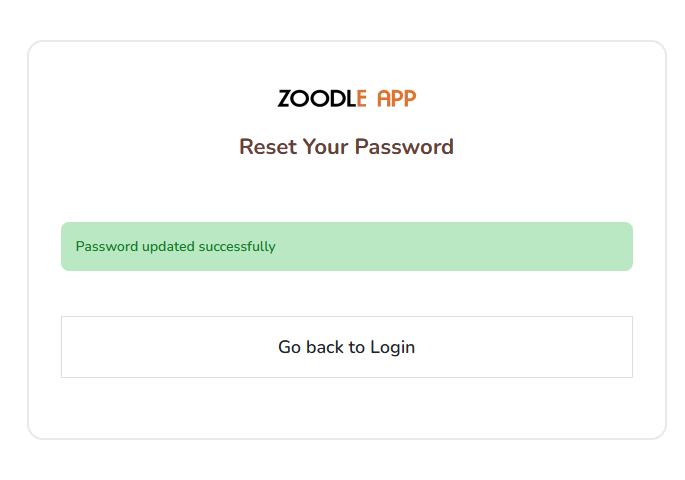
• Upon clicking the "Change Password" button, your password will be successfully updated.
Welcome to the Zoodleapp Mobile app, pet lover!
If you are interested in becoming a pet sitter, you can sign up at any time and complete the required sections at your convenience.
Steps to create a sitter profile on the Zoodleapp Mobile app:
• You will begin by setting up your sitter profile, which consists of four steps.
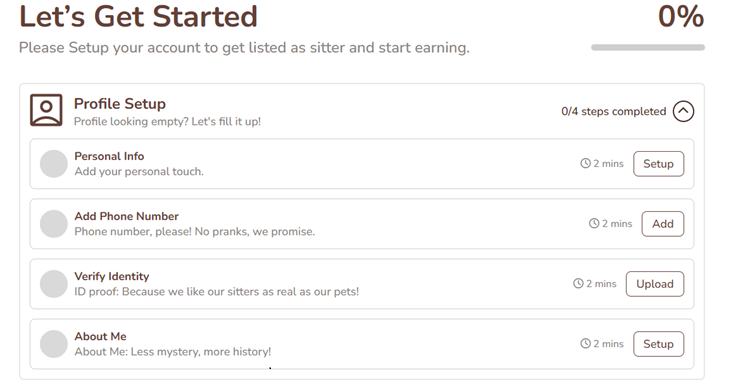
• In the first step, please provide your personal details.
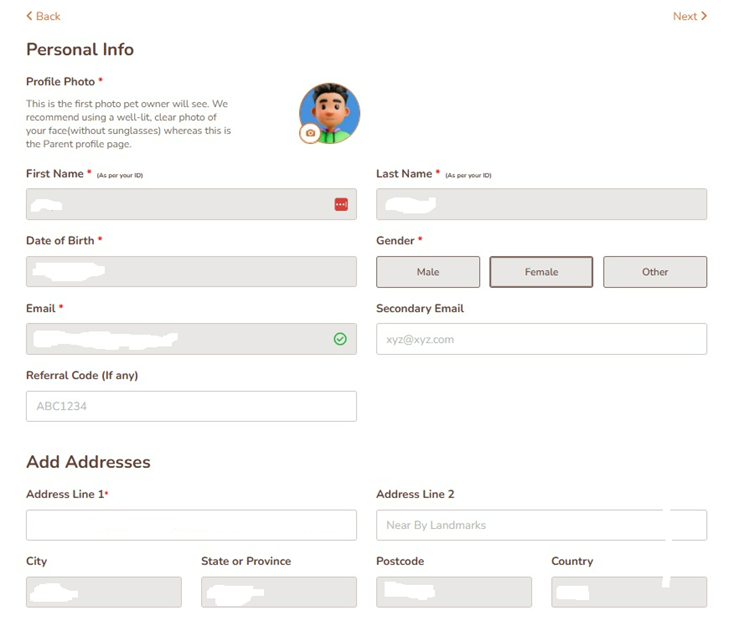
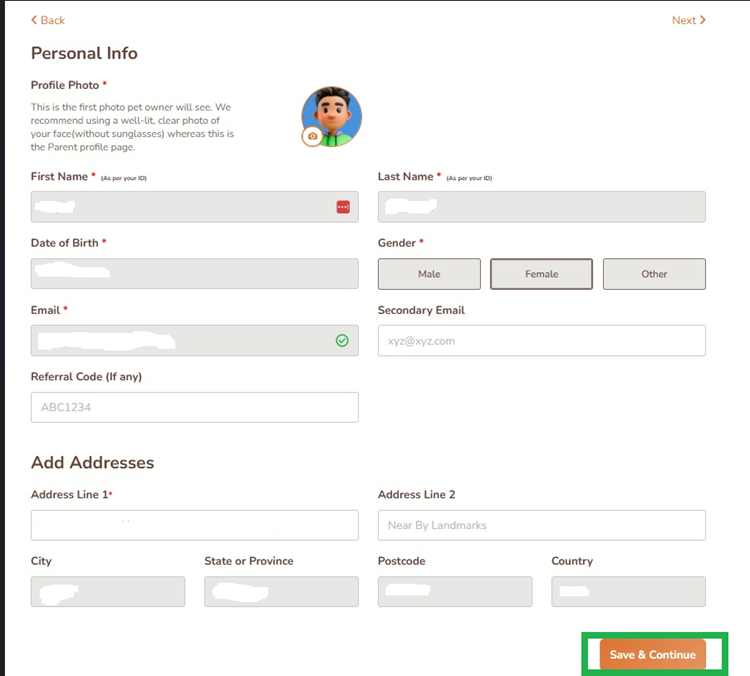
• Please ensure that all information is entered correctly, and then click the "Save" \ "Continue" button to proceed.
• Kindly enter your phone number details
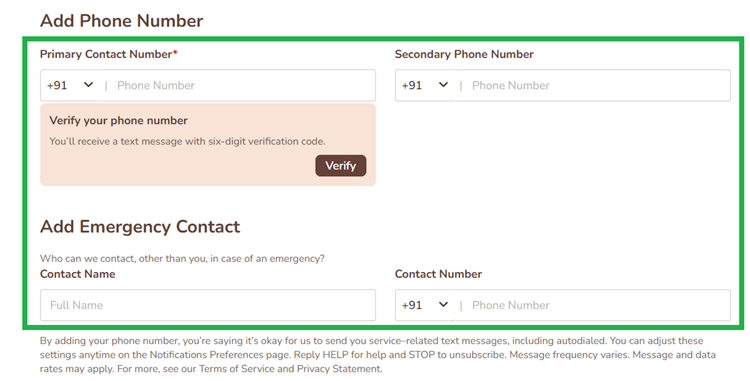
• Please enter your number and click on the "Verify" option located below the "Number" field.
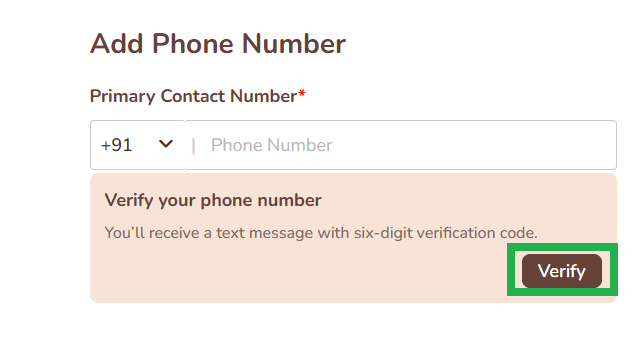
• Once you click on the "Verify" option, a 6-digit OTP will be sent to the provided number
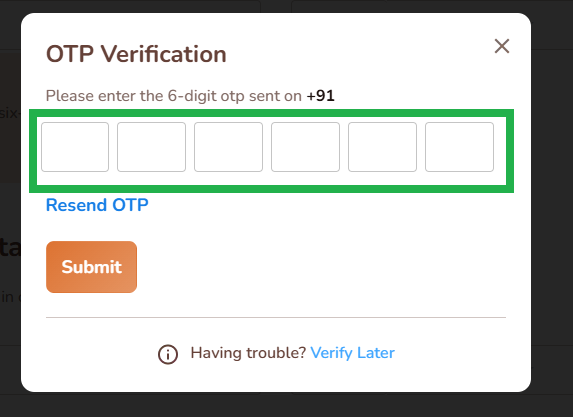
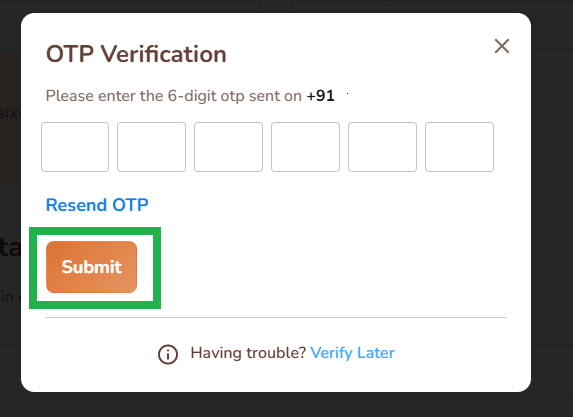
• Once you have entered the OTP, please click the "Submit" button.
• Once your number has been verified, click on the "Save and Continue" button.
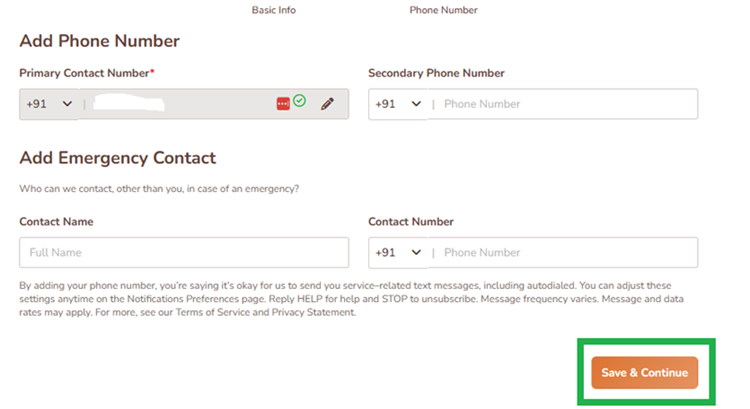
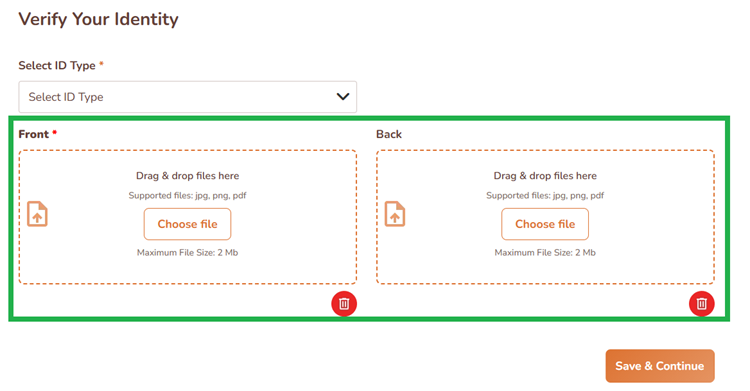
• Please verify your identity and upload the required document.
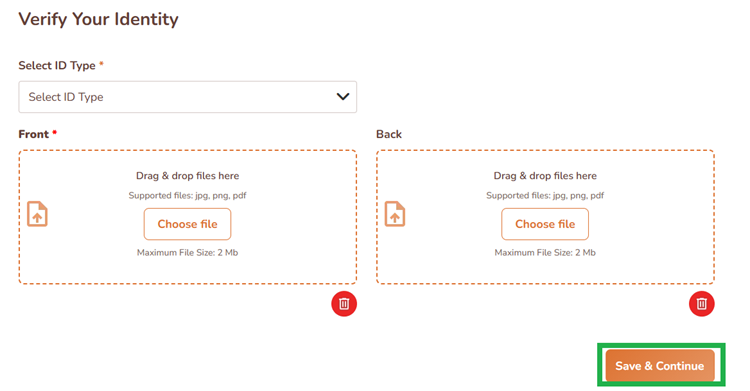
• Once your identity has been verified and the documents have been uploaded, please click the "Save and Continue" button.
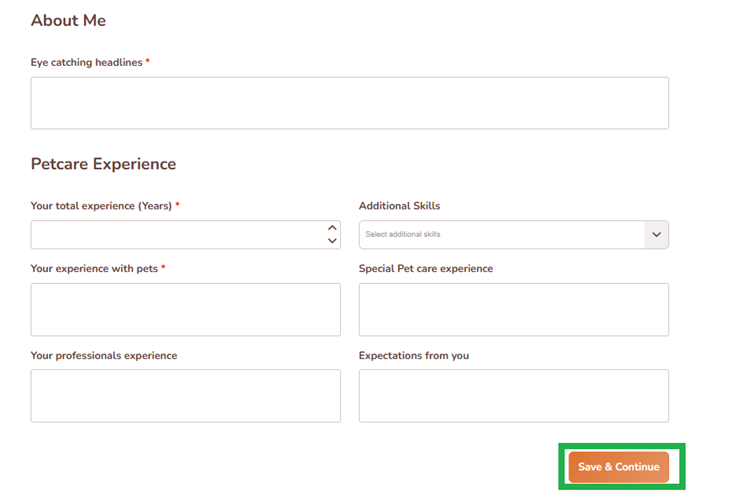
• Please complete the required information.
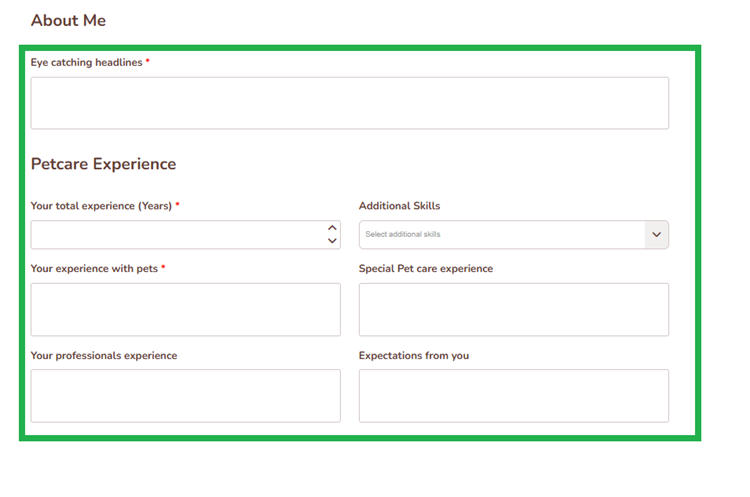
• After completing all the details, click on the "Save and Continue" button.
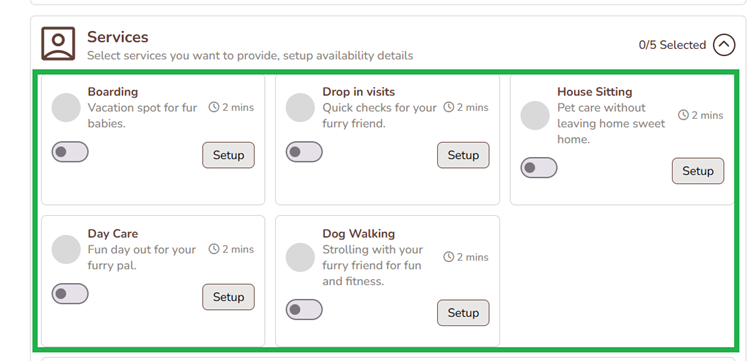
• Select the services you wish to offer and specify your availability details.
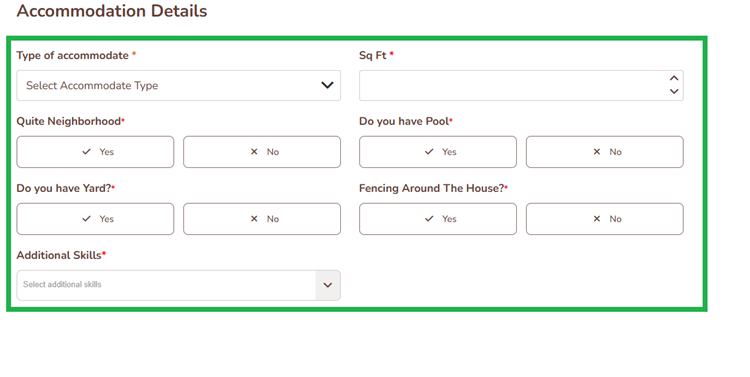
• Please provide your accommodation details.
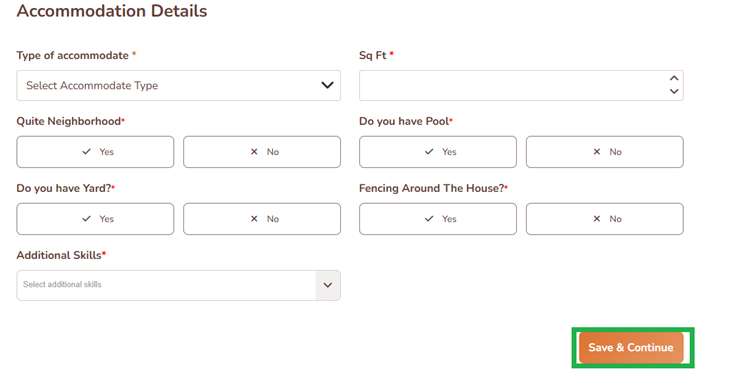
• Once all accommodation details have been entered, please click the "Save and Continue" button to proceed.
• Please specify your availability
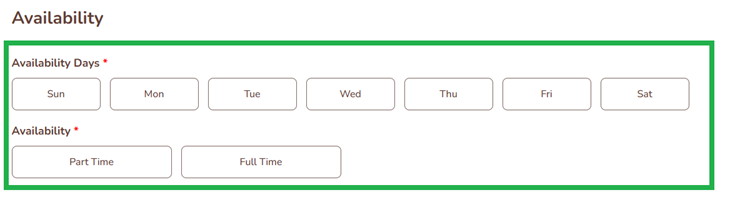
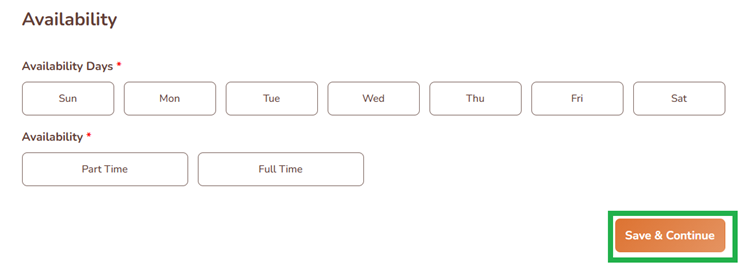
• After selecting your availability, please click the "Save & Continue" button to proceed.
• Additional services are available for you to select. Please choose the desired services.
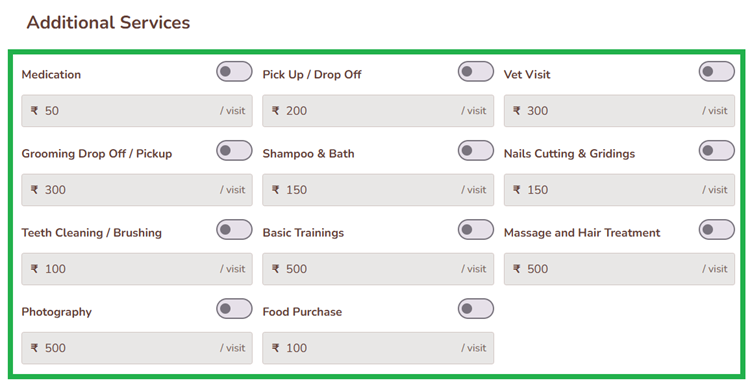
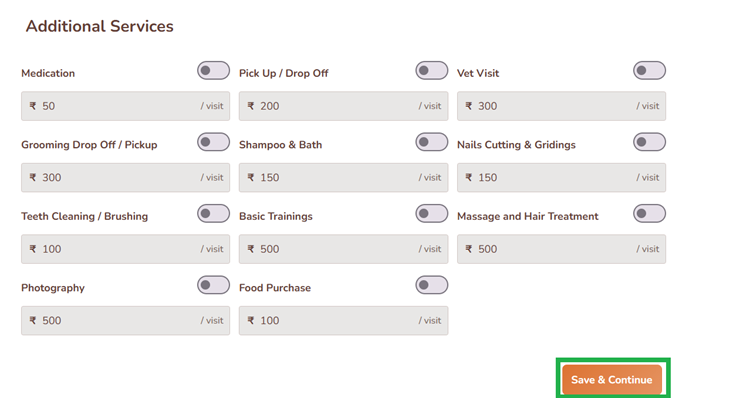
• After selecting the additional services, please click the "Save and Continue" button to proceed.
• Select the "Add Holiday" option to provide a rating for your holidays.
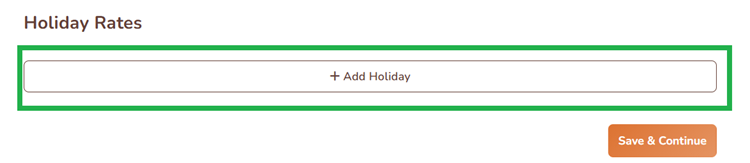
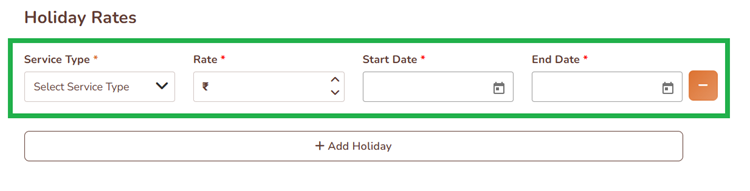
• By selecting the "Add Holiday" option, you can enter all the relevant details for your holiday rating.
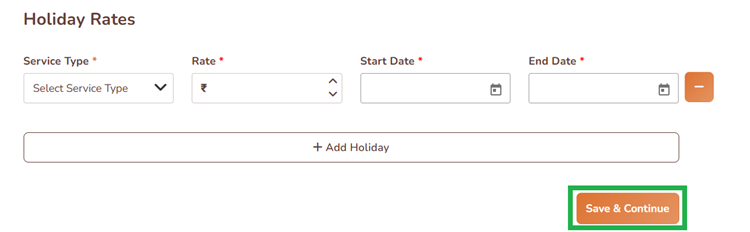
• After entering all the information related to the holiday, please click the "Save and Continue" button to proceed.
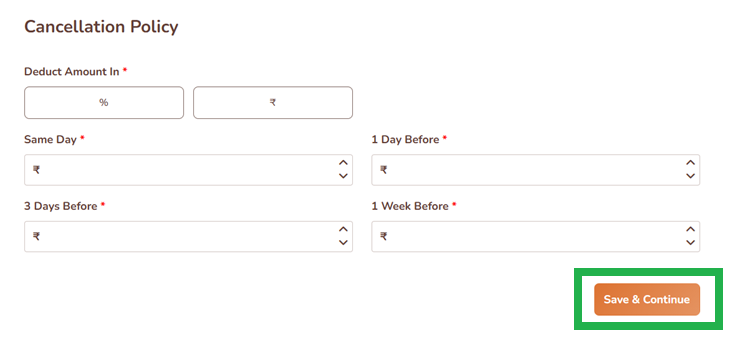
• Please enter the provided Cancellation Policy details
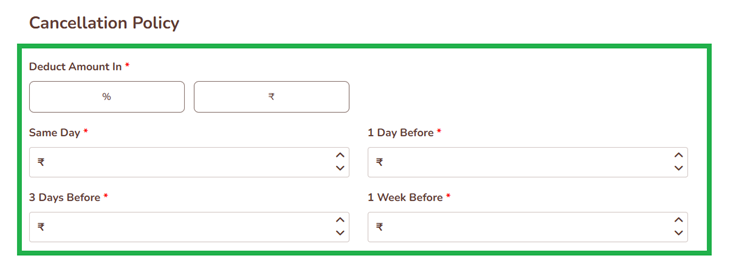
• Once all the information related to the cancellation policy has been entered, please click the "Save and Continue" button to proceed.
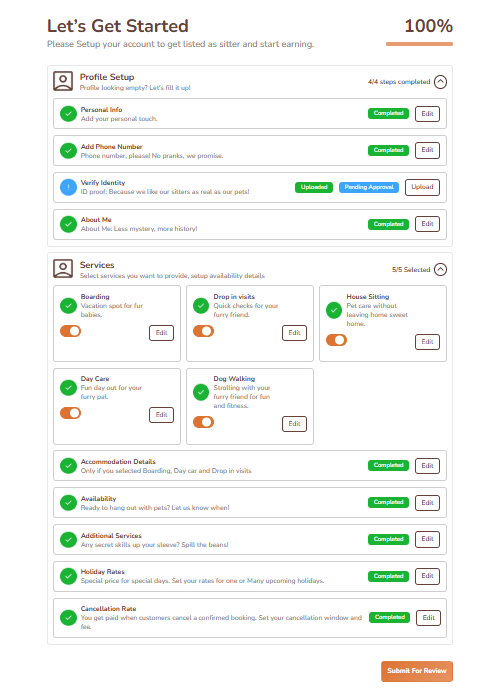
• Please complete all the required details and click the "Submit" or "Review" button to proceed.
Welcome to the Zoodleapp.com website, pet lover!
If you are interested in becoming a pet sitter, you can register at any time and complete the required sections at your convenience.
Steps to become a pet sitter on the Zoodleapp.com website:
• You will begin by setting up your sitter profile, which consists of four steps.
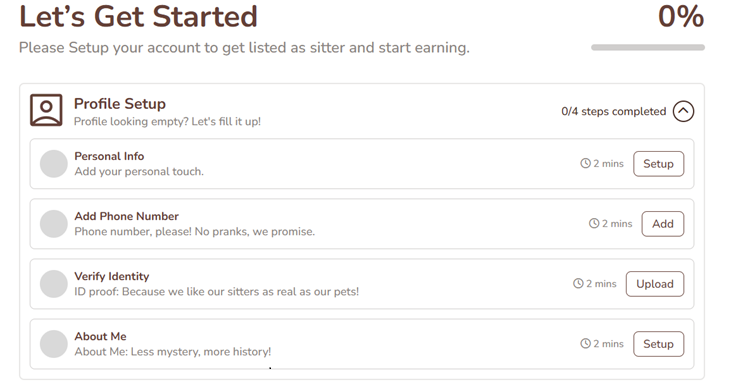
• In the first step, please provide your personal details.
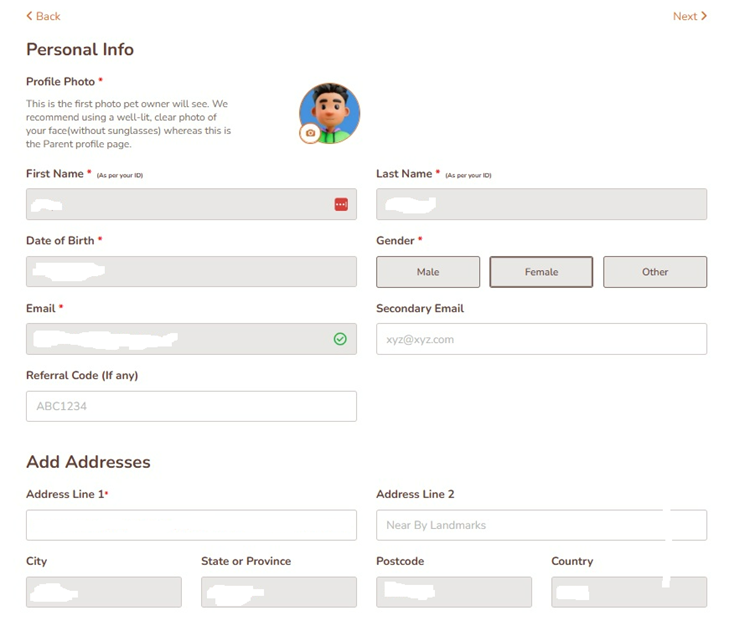
• Please ensure that all information is entered correctly, and then click the "Save" \ "Continue" button to proceed.
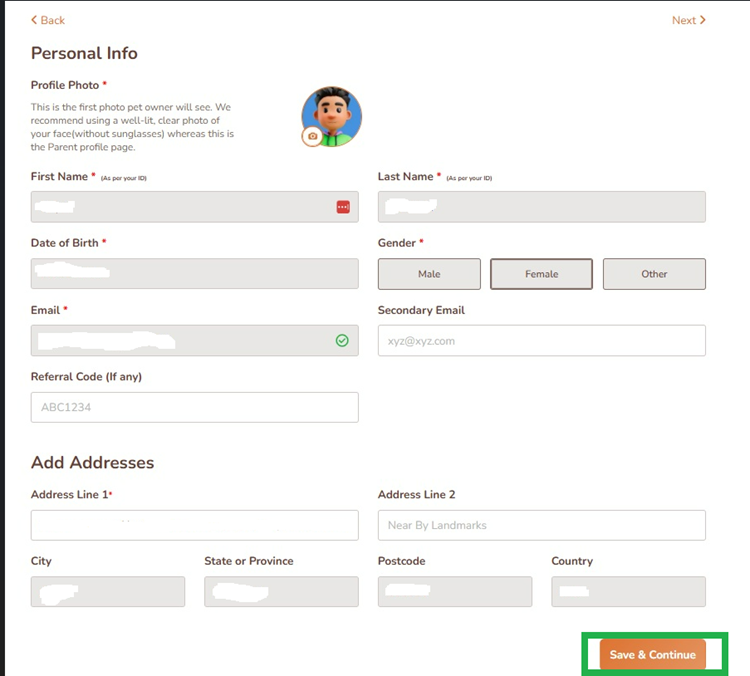
• Kindly enter your phone number details
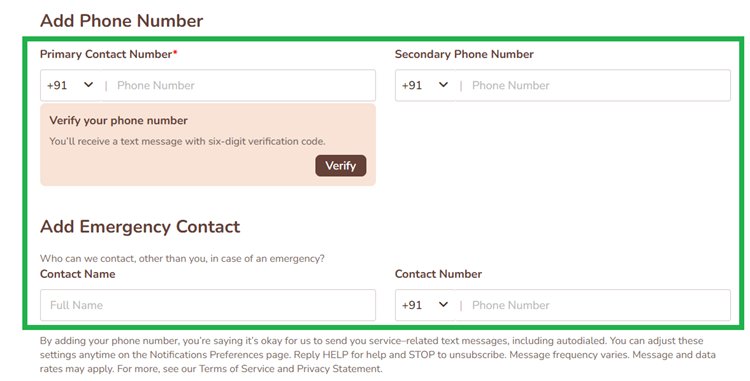
• Please enter your number and click on the "Verify" option located below the "Number" field.
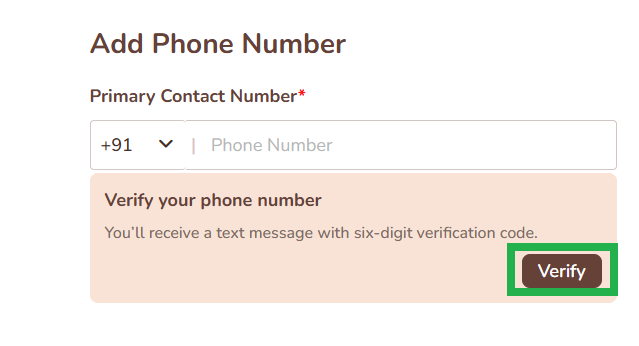
• Once you click on the "Verify" option, a 6-digit OTP will be sent to the provided number
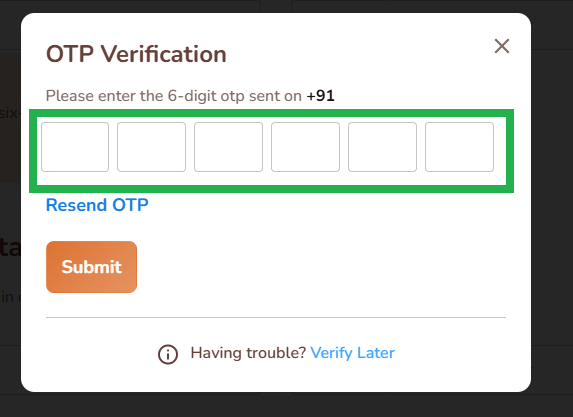
• Once you have entered the OTP, please click the "Submit" button.
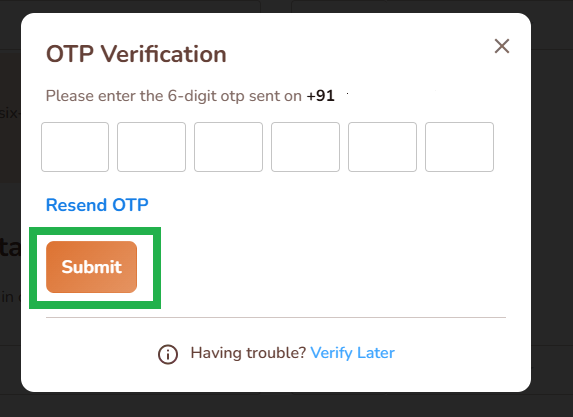
• Once your number has been verified, click on the "Save and Continue" button.
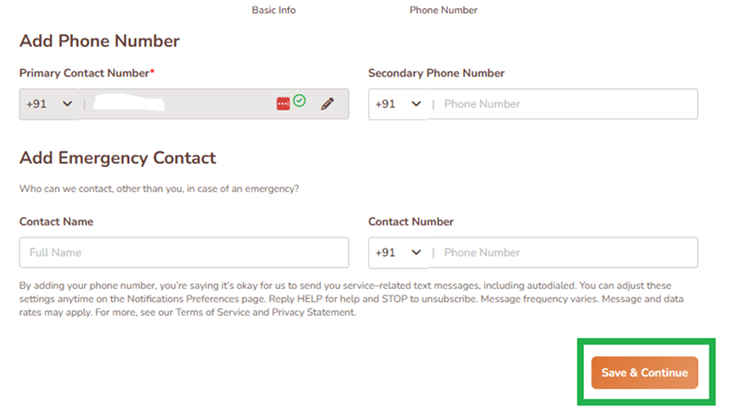
• Please verify your identity and upload the required document
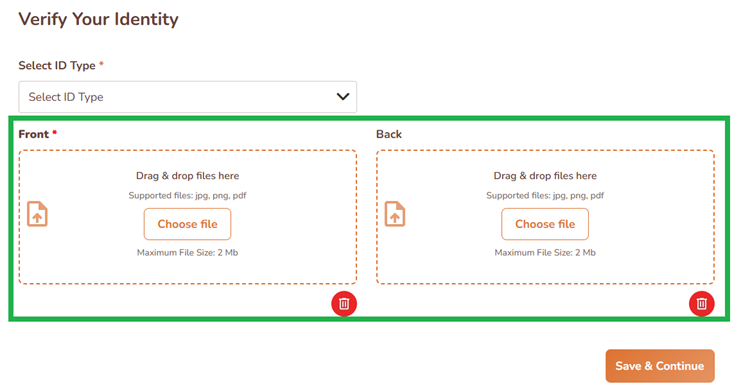
• Once your identity has been verified and the documents have been uploaded, please click the "Save and Continue" button.
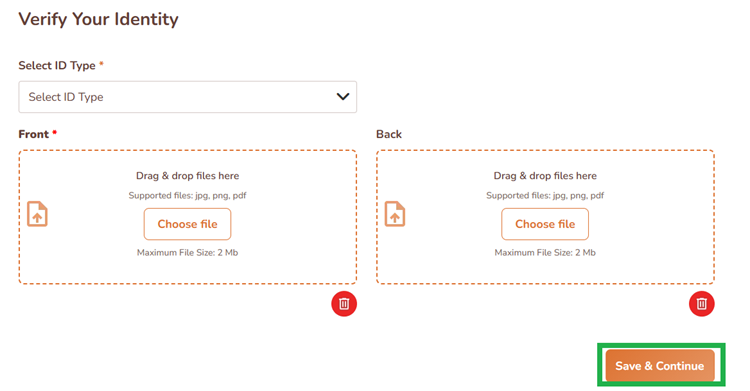
• Please complete the required information
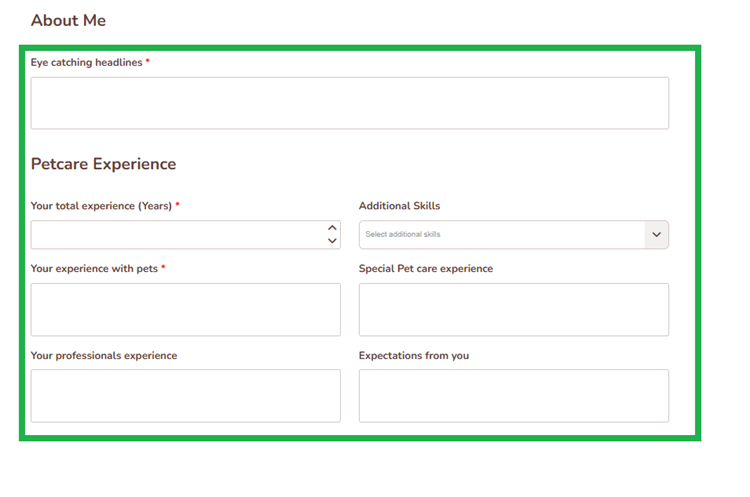
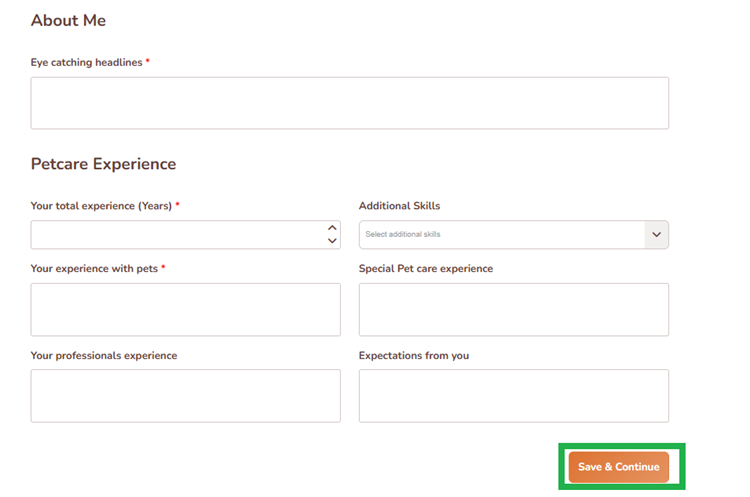
• After completing all the details, click on the "Save and Continue" button.
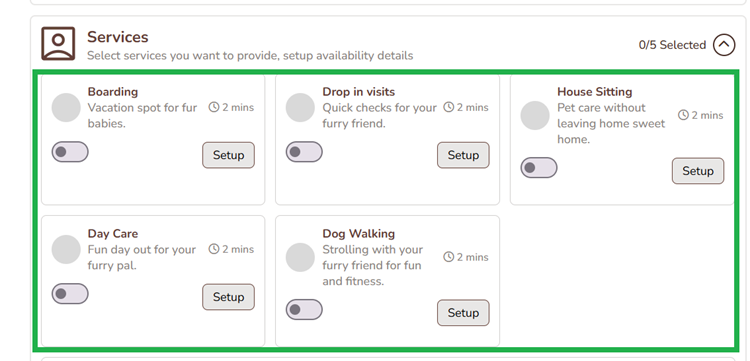
• Select the services you wish to offer and specify your availability details.
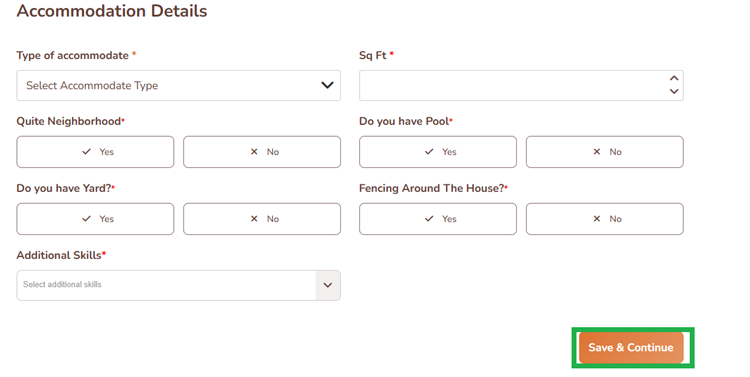
• Please provide your accommodation details.
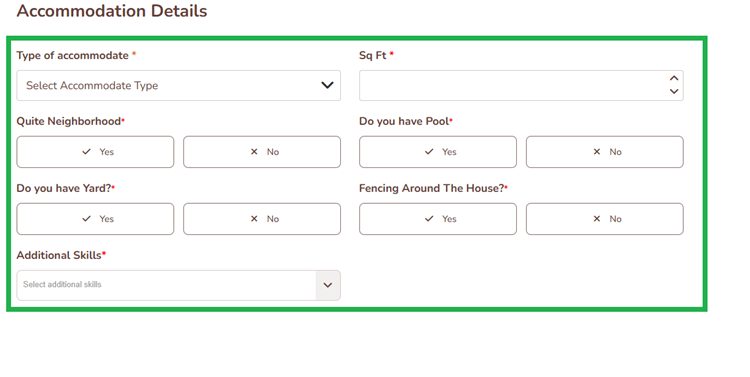
• Once all accommodation details have been entered, please click the "Save and Continue" button to proceed.
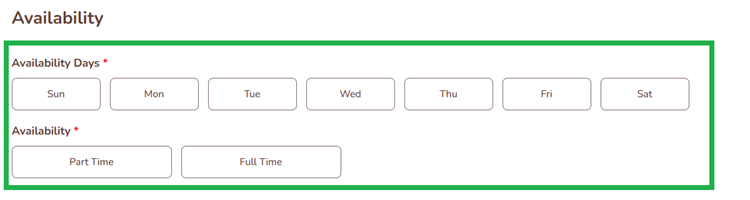
• Please specify your availability
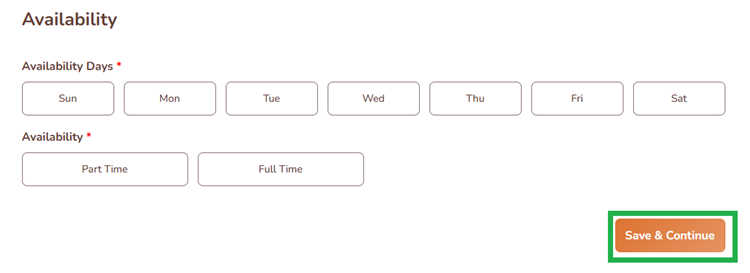
• After selecting your availability, please click the "Save & Continue" button to proceed.
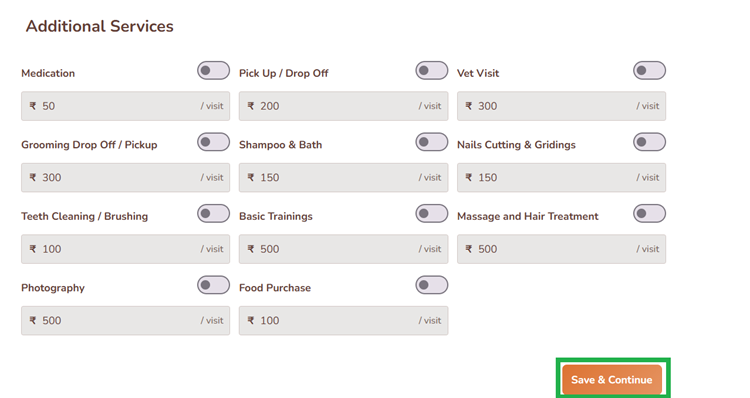
• Additional services are available for you to select. Please choose the desired services
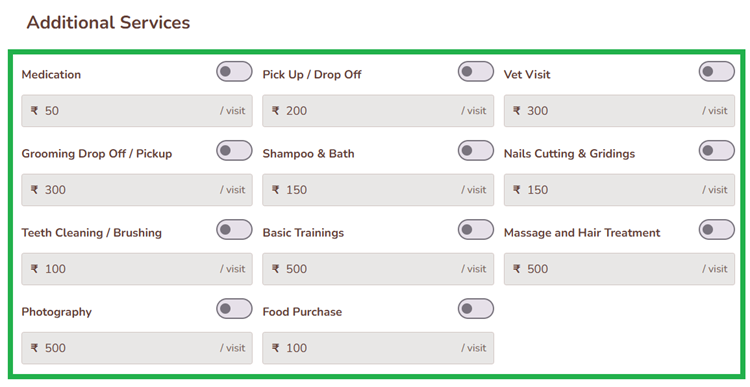
• After selecting the additional services, please click the "Save and Continue" button to proceed.
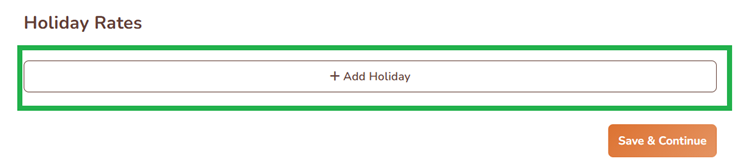
• Select the "Add Holiday" option to provide a rating for your holidays.
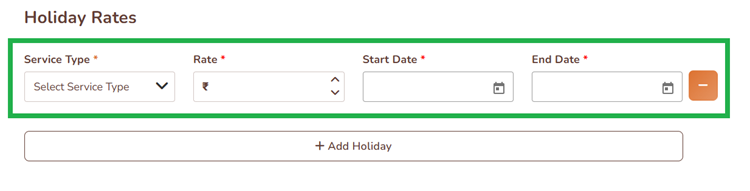
• By selecting the "Add Holiday" option, you can enter all the relevant details for your holiday rating.
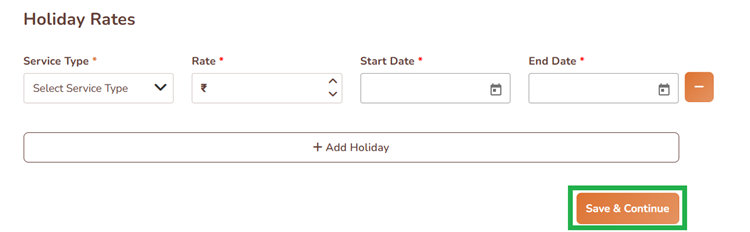
• After entering all the information related to the holiday, please click the "Save and Continue" button to proceed.
• Please enter the provided Cancellation Policy details
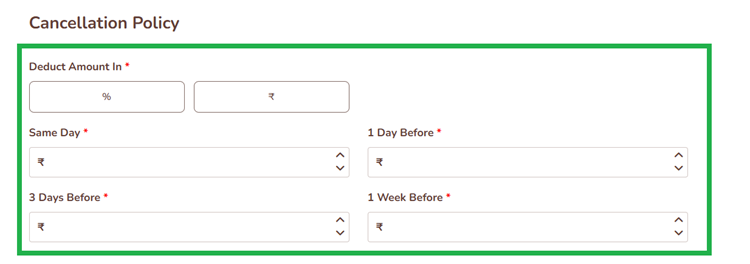
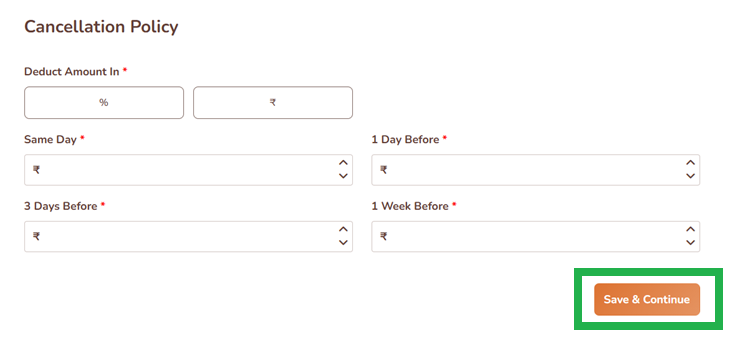
• Once all the information related to the cancellation policy has been entered, please click the "Save and Continue" button to proceed.
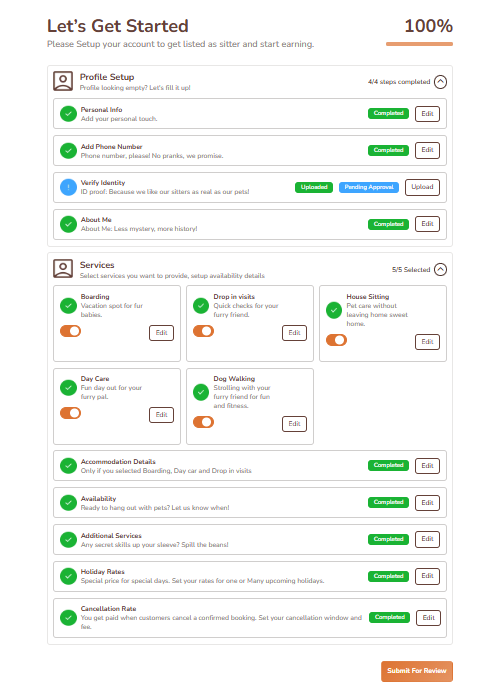
• Please complete all the required details and click the "Submit" or "Review" button to proceed.
"Yes, you can certainly continue using the Zoodleapp Mobile app with your Google account."
"Instructions for signing up with Google on the Zoodleapp Mobile app."
• To proceed using Google, kindly click the "Continue with Google" button.
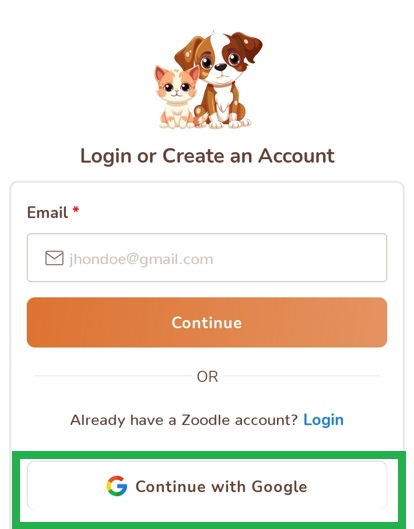
• Upon selecting "Continue with Google," you will be presented with the option to choose either email or phone.
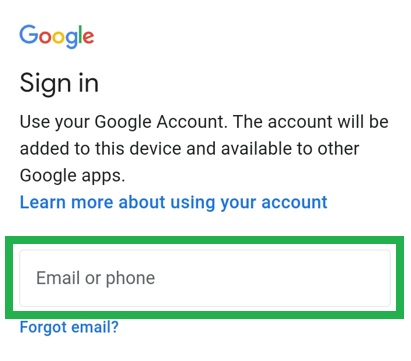
• After entering your email address or phone number, please click the "Next" option.
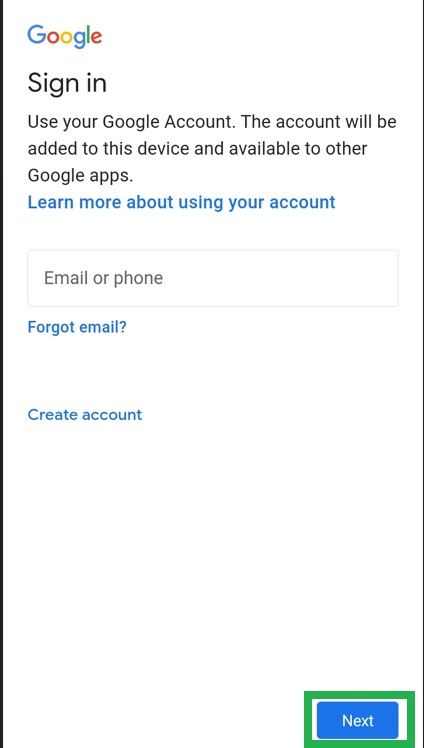
• Upon clicking the "Next" button, Google will prompt you to enter your password for verification.
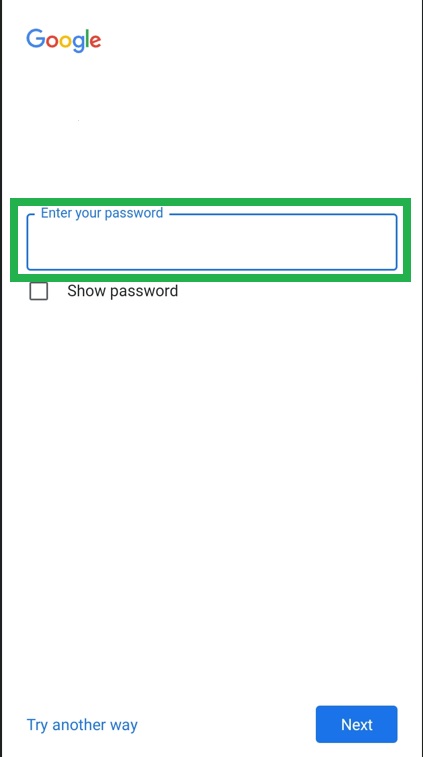
• After entering your password, kindly click the "Next" button.
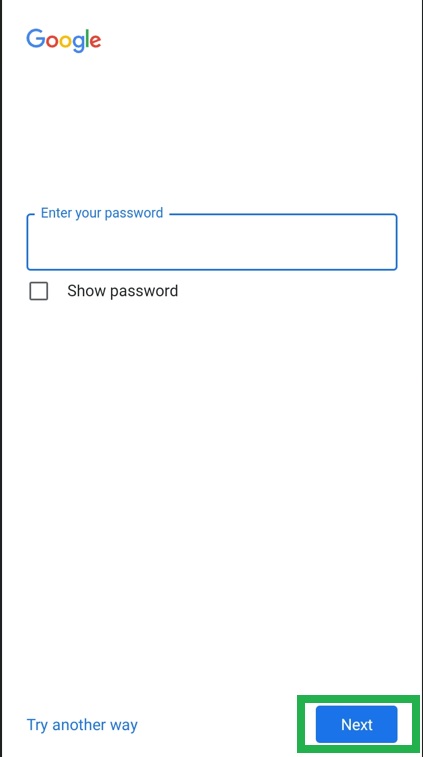
• Upon clicking the "Next" button, your account will be accessed.
"Yes, you can also sign up for the Zoodleapp.com website using your Google account."
"Instructions for signing up with Google on the Zoodleapp.com website."
• To proceed using Google, kindly click the "Continue with Google" button.
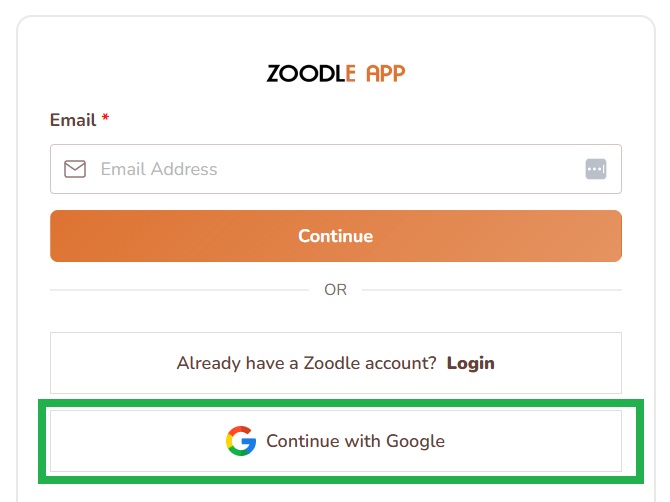
• Upon selecting "Continue with Google," you will be presented with the option to choose either email or phone.
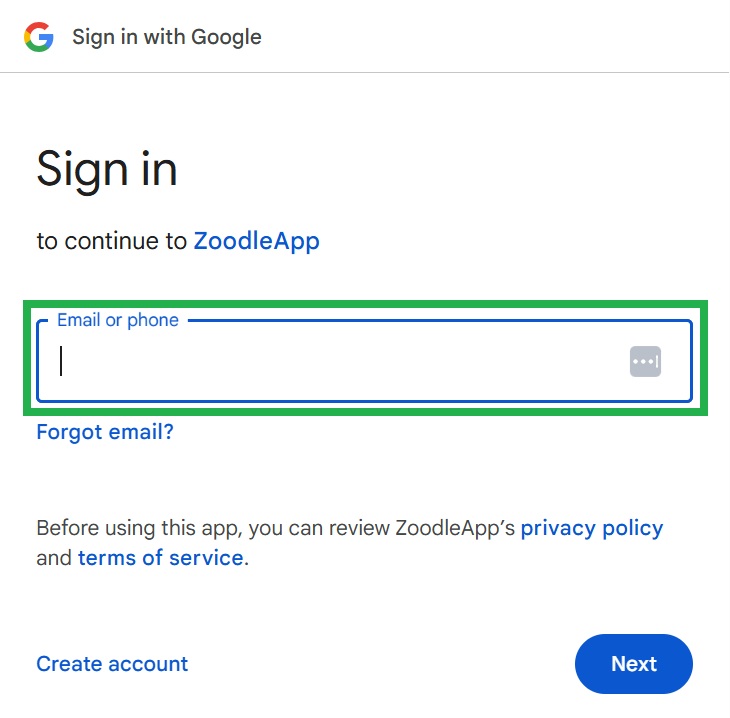
• After entering your email address or phone number, please click the "Next" option.
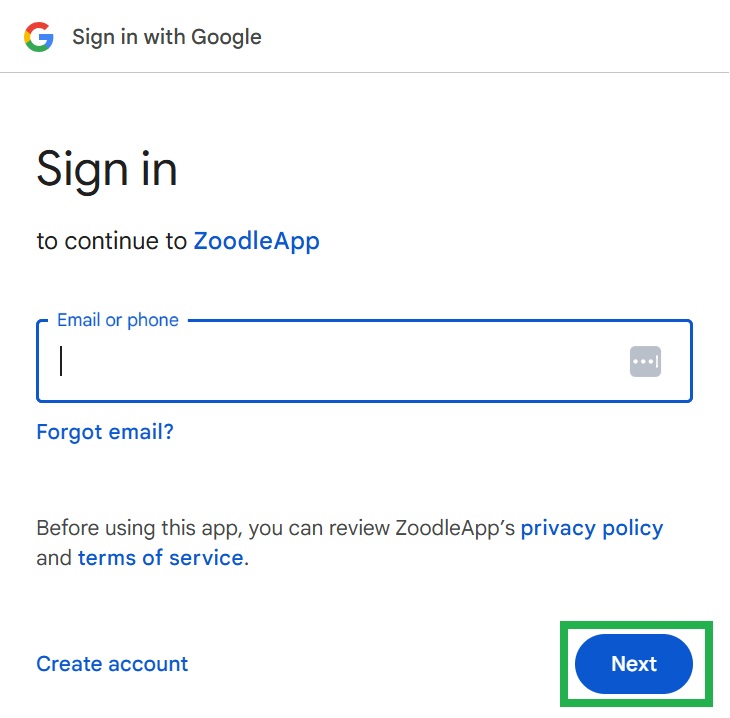
• Upon clicking the "Next" button, Google will prompt you to enter your password for verification.
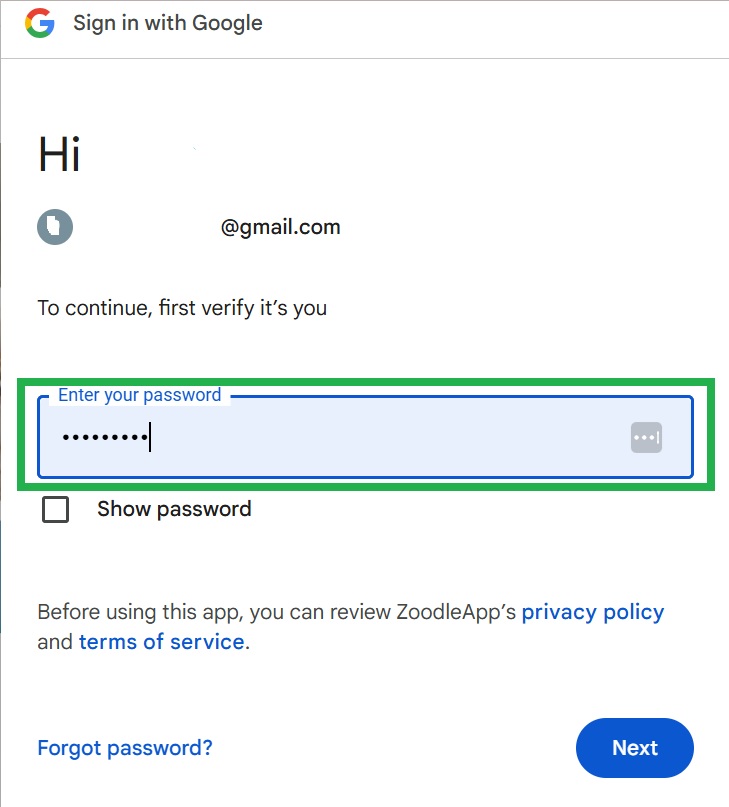
• After entering your password, kindly click the "Next" button.
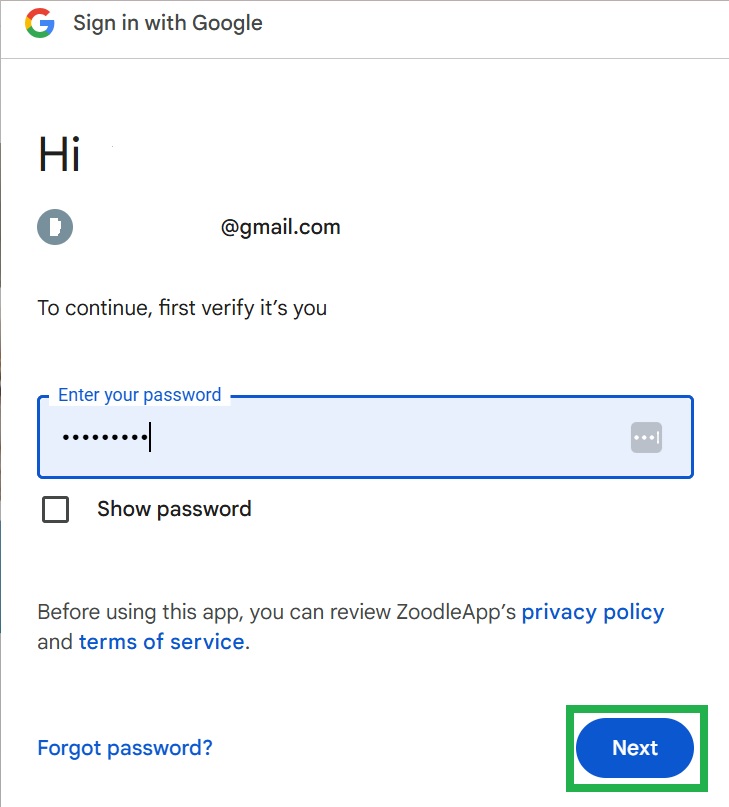
• Upon clicking the "Next" button, your account will be accessed.
" Yes, you can also login to the Zoodleapp Mobile app using your phone number."
"Instructions for login on the Zoodleapp mobile app using a phone number."
• To login using your phone, please select the "Login with Phone" option.
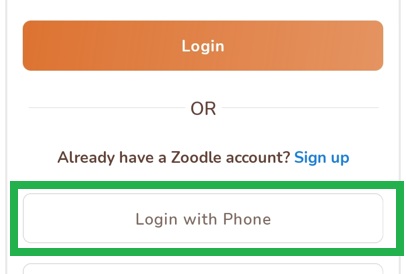
• Upon selecting the "Login with Phone" option, the Zoodle app will prompt you to register your phone number.
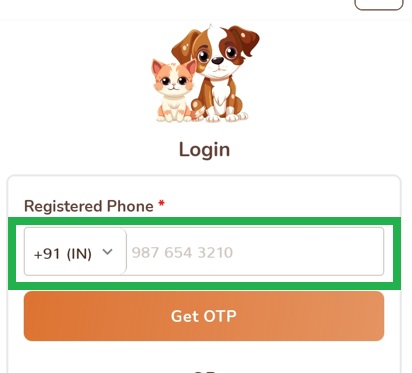
• After registering your phone number, please select the " GET OTP" option.
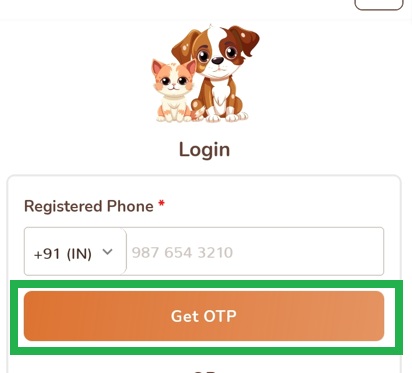
• Kindly enter the OTP sent to your phone number.
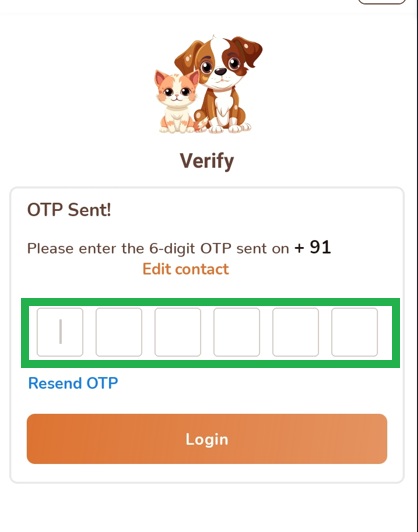
• Once you have entered the OTP, please click the "Login" button.
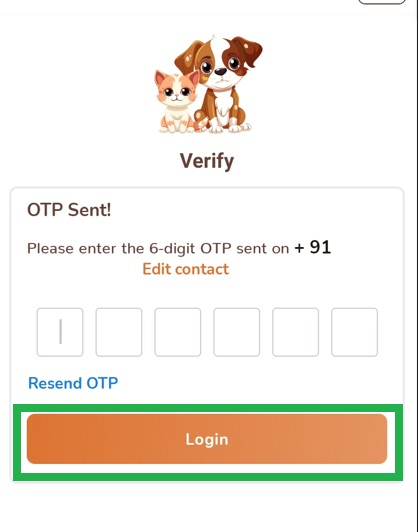
• Upon clicking the "Login" button, your account will be successfully accessed.
"Yes, you can also login on the Zoodleapp.com website using your phone number."
Instructions for logining up on the Zoodleapp.com website using a phone number."
• To login using your phone, please select the "Login with Phone" option.
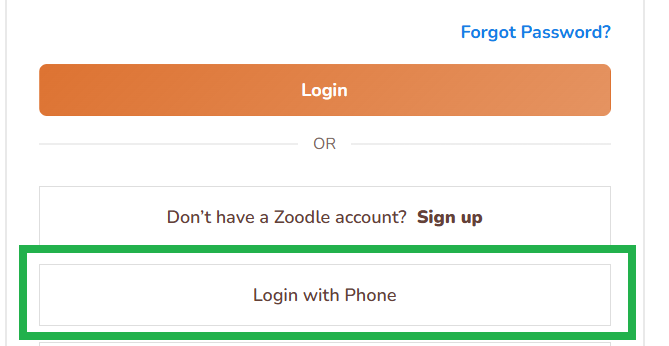
• Upon selecting the "Login with Phone" option, the Zoodleapp.com will prompt you to register your phone number.
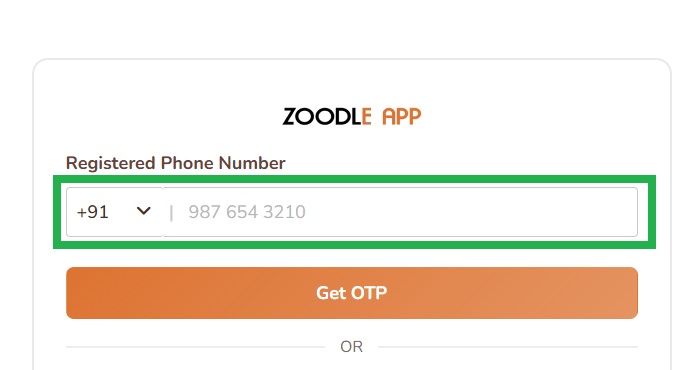
• After registering your phone number, please select the "OTP" option.
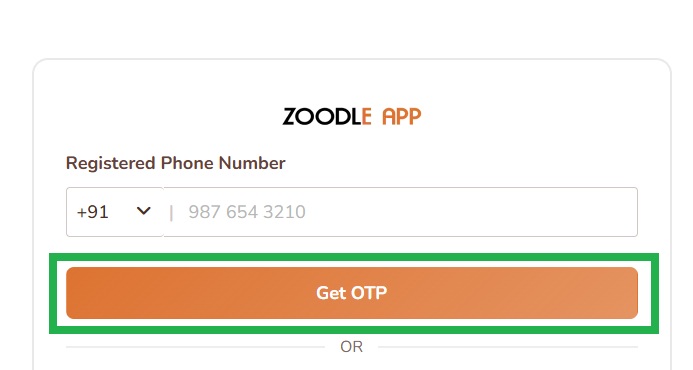
• Kindly enter the OTP sent to your phone number.
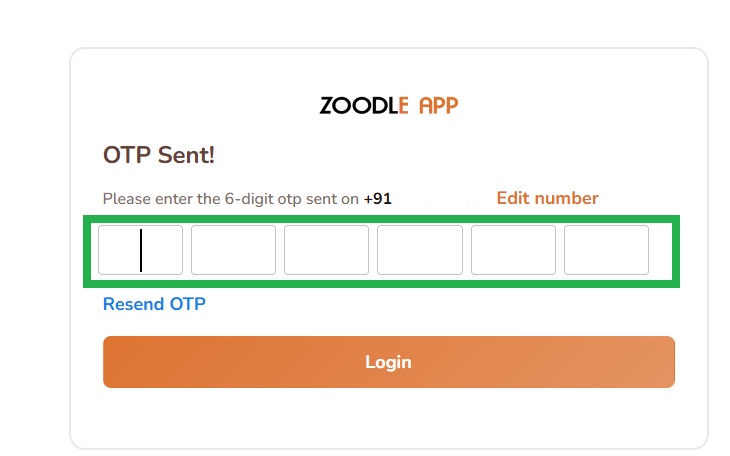
• Once you have entered the OTP, please click the "Login" button.
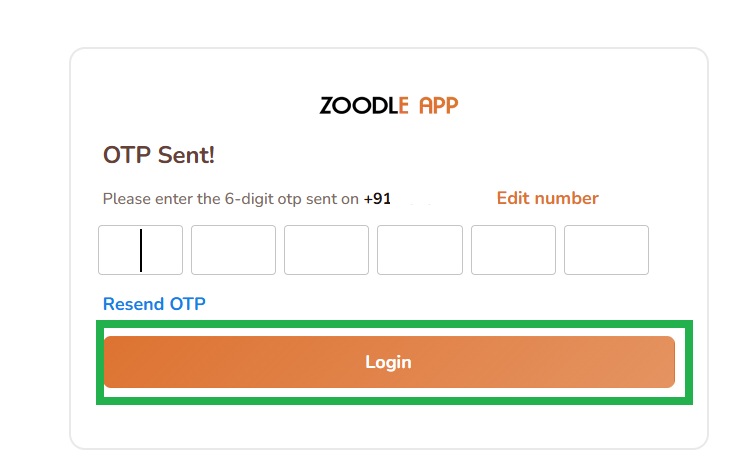
• Upon clicking the "Login" button, your account will be successfully accessed.
"Instructions for logging into the Zoodleapp mobile app."
• To access the Zoodleapp mobile app, please select the "Login" option."
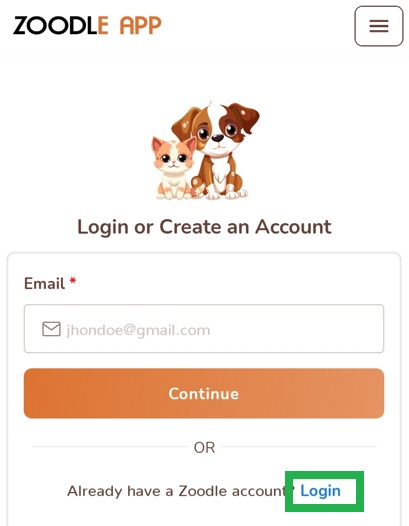
• Subsequently, please input your email address and password.
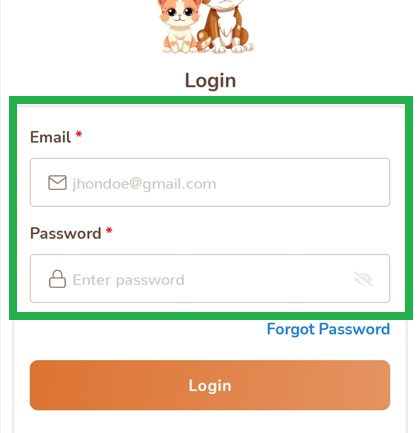
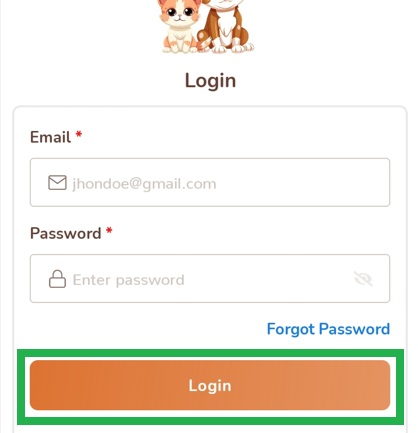
• Once you have entered your email address and password, please click the "Login" button to proceed.
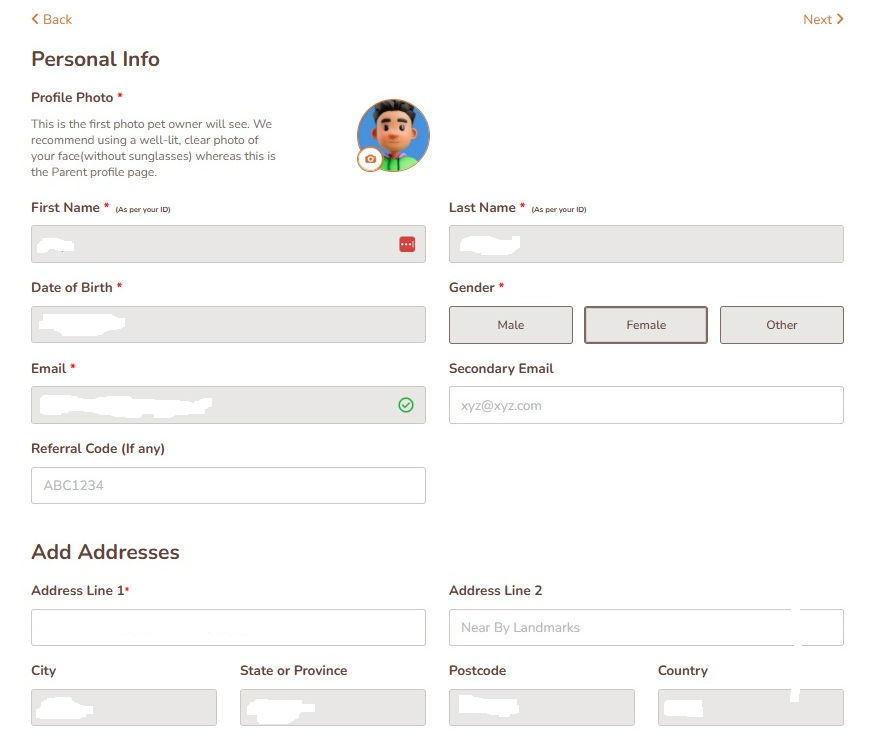
• Kindly complete the required fields with your personal information
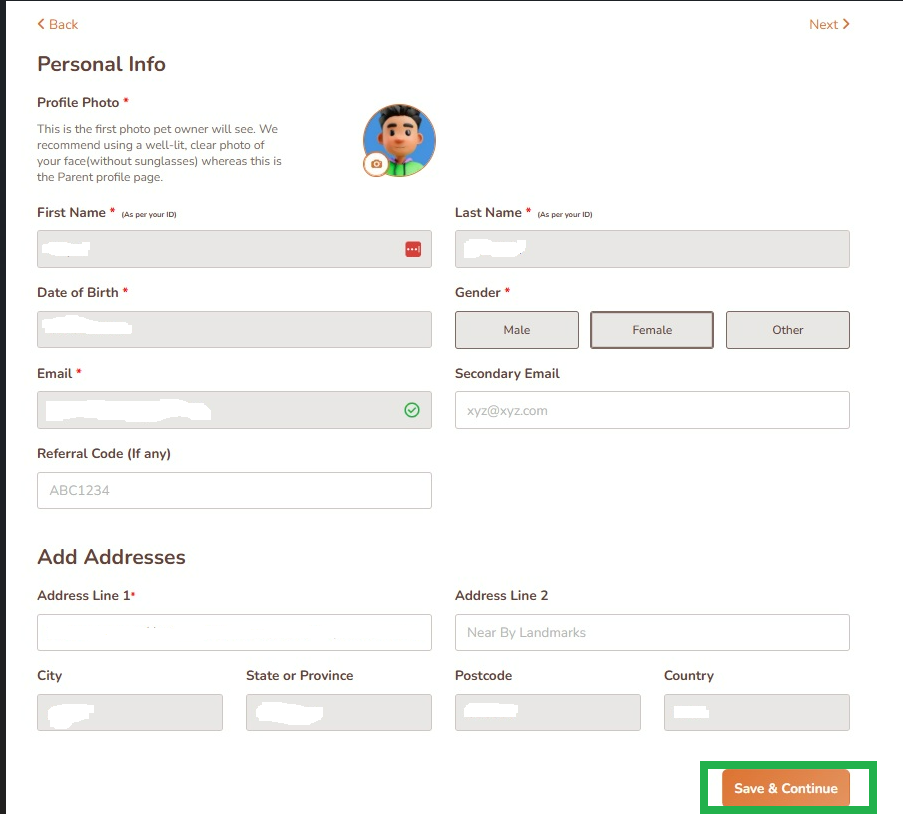
• Once all the details have been entered, please click the "Save and Continue" button to proceed.
• Please provide the details associated with your phone number.
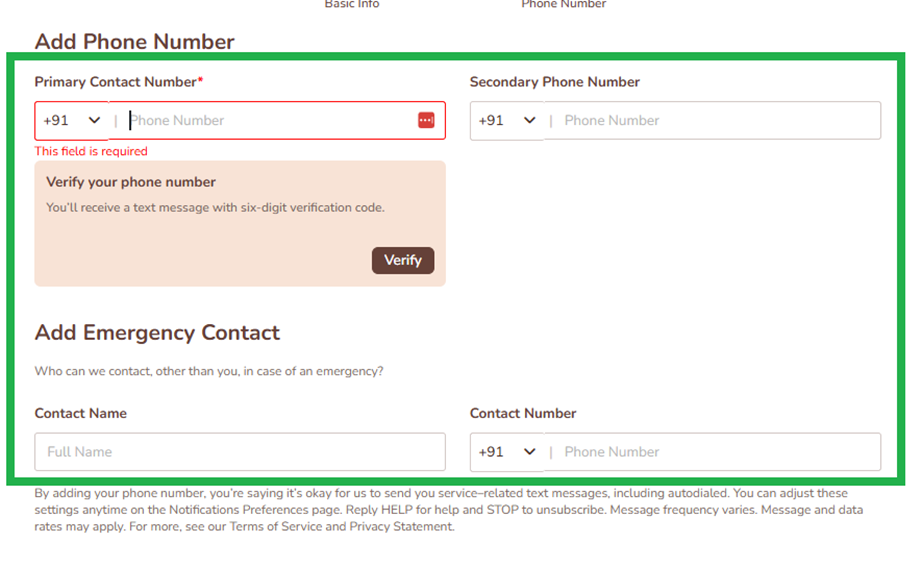
• After entering your phone number, please click the "Verify" option.
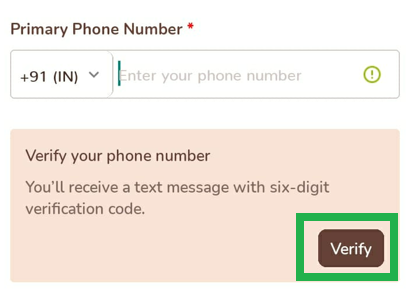
• Upon clicking the "Verify" option, an OTP will be sent to your phone number.
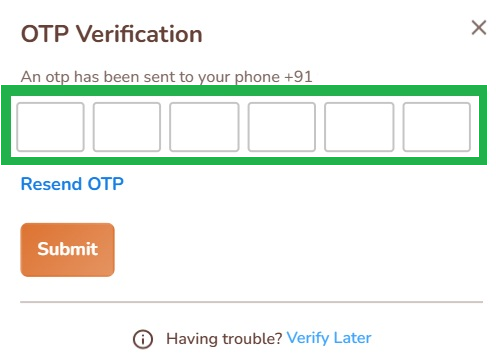
• After entering the OTP, please click the "Submit" button.
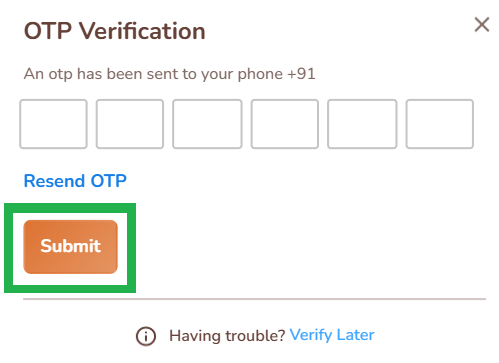
• After entering all the required details for your phone number, please click the "Save and Continue" button.
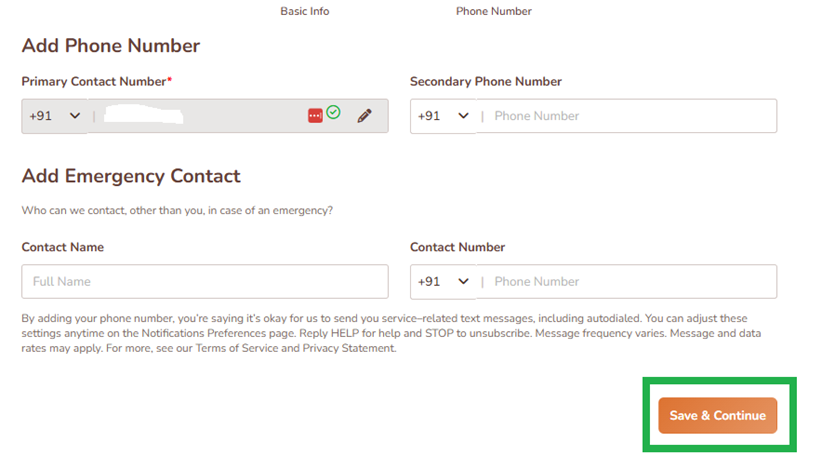
• The login process has been successfully completed.
"Please follow the steps below to login."
• "To log in to the Zoodleapp.com website, please select the 'Login' option."
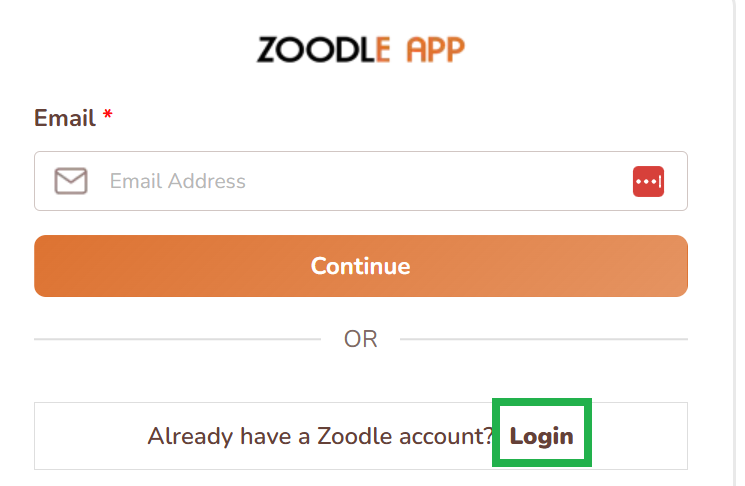
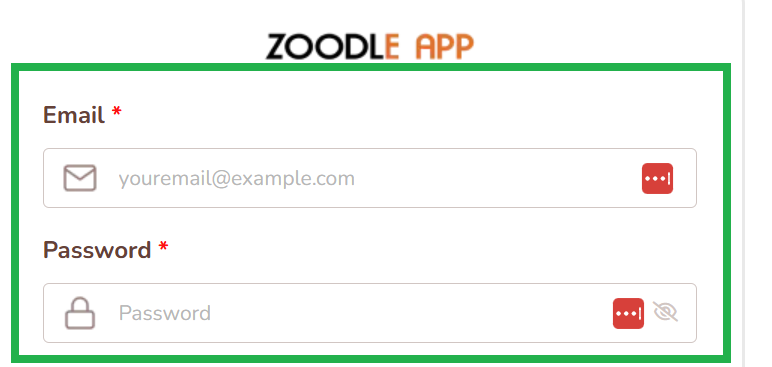
• "Upon selecting the 'Login' option, you will be prompted to enter your email address and password. Please provide the required credentials."
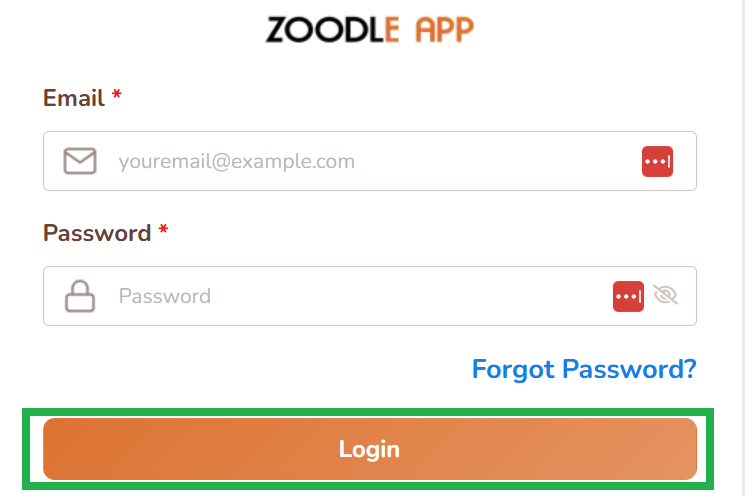
• "Once you have entered your email address and password, please click the 'Login' button."
• Kindly complete the required fields with your personal information.
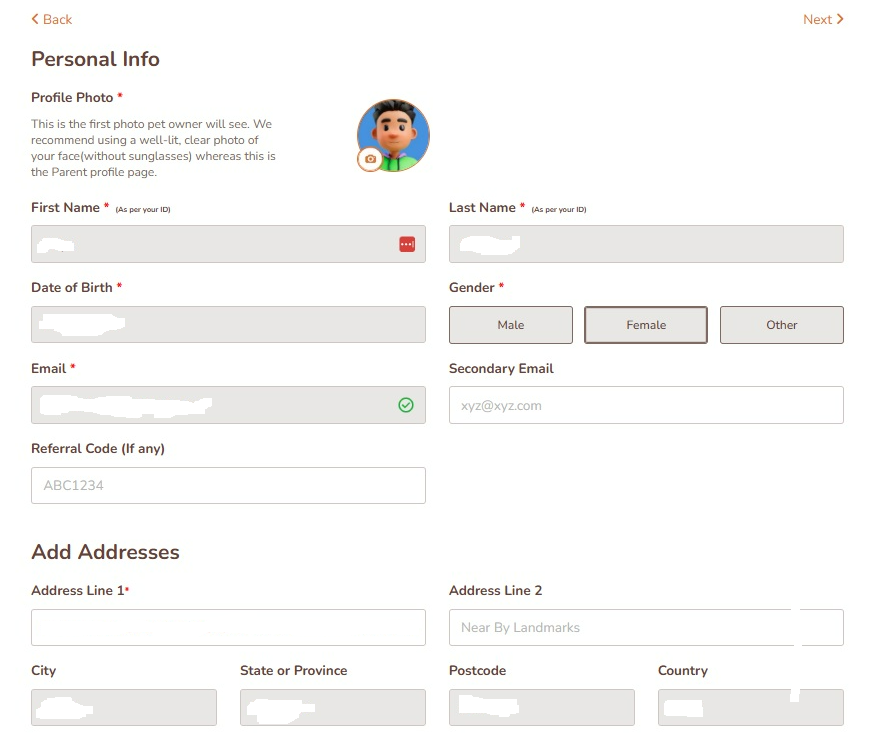
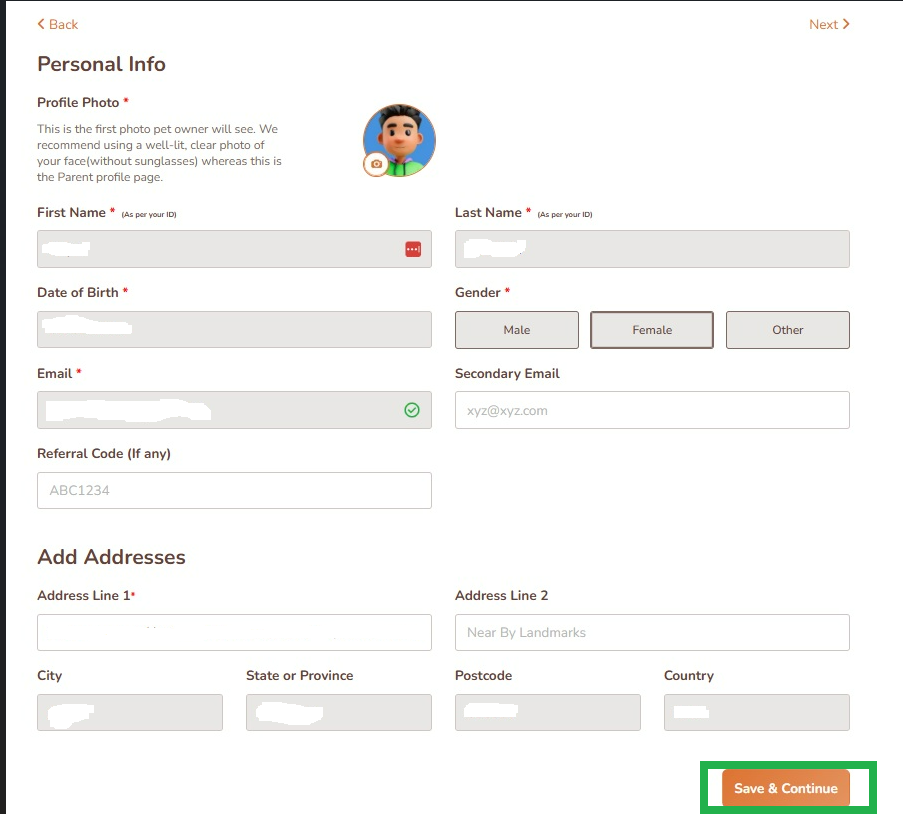
• Please ensure that all information is entered correctly, and then click the "Save" \ "Continue" button to proceed.
• Please provide the details associated with your phone number.
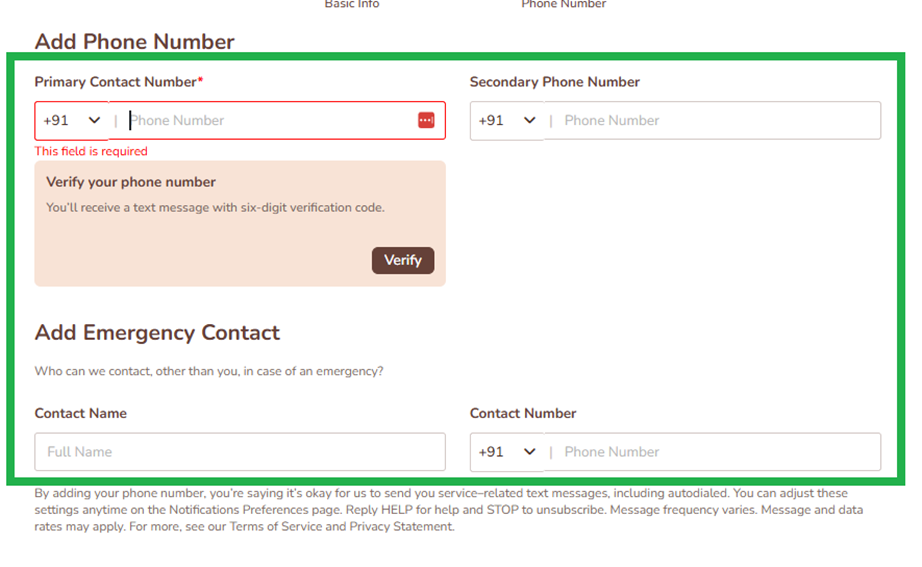
• After entering your phone number, please click the "Verify" option.
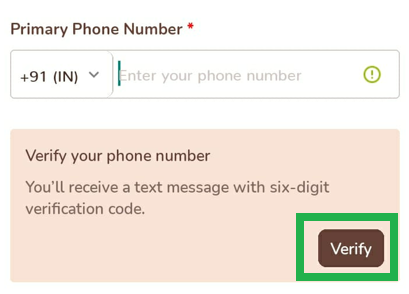
• Upon clicking the "Verify" option, an OTP will be sent to your phone number.
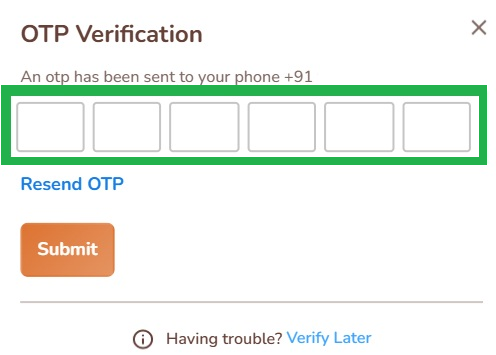
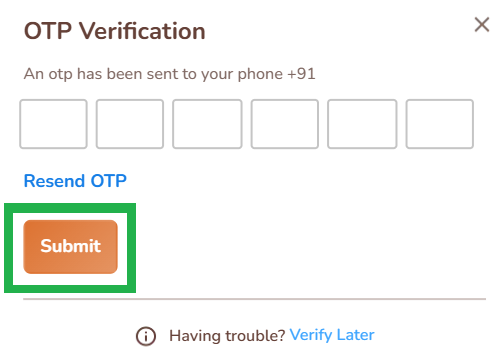
• After entering the OTP, please click the "Submit" button.
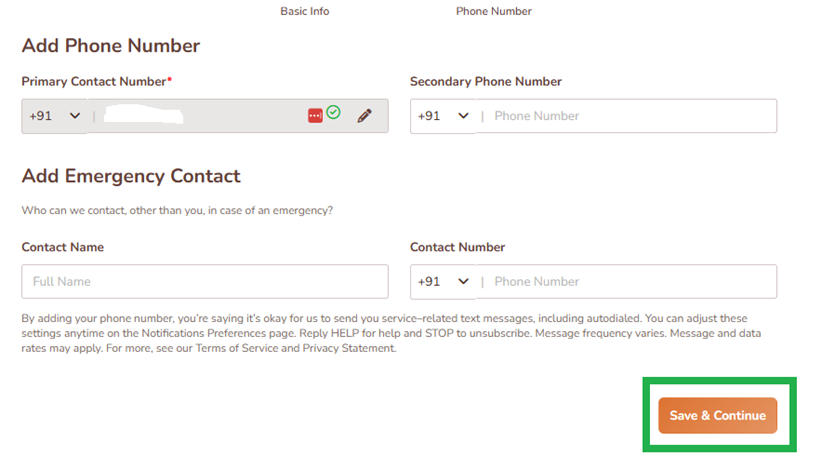
• After entering all the required details for your phone number, please click the "Save and Continue" button.
• The login process has been successfully completed.
Welcome to the Zoodleapp Mobile app You can register for a free account and access our services.
Steps to create an account on the Zoodleapp Mobile app.
• Upon launching the Zoodleapp Mobile app, you will find the "Get Started" option at the bottom of the homepage. Please click on it to proceed.
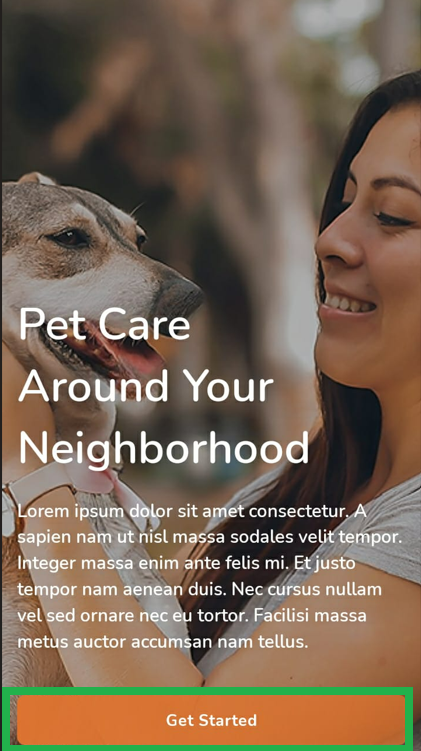
• After selecting the "Get Started" option, you will be presented with the options to "Login" or "Create an Account." To proceed with account creation, kindly enter your email address.
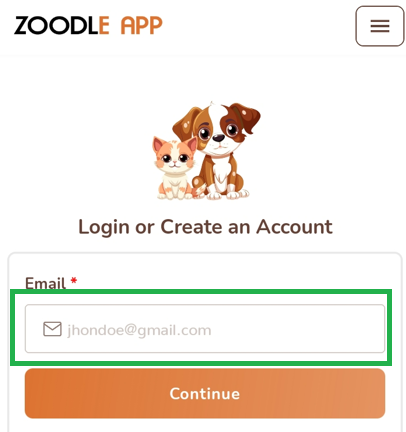
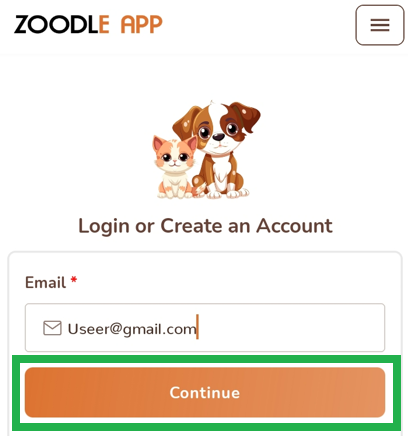
• Once you have entered your email address, please click the "Continue" button to proceed.
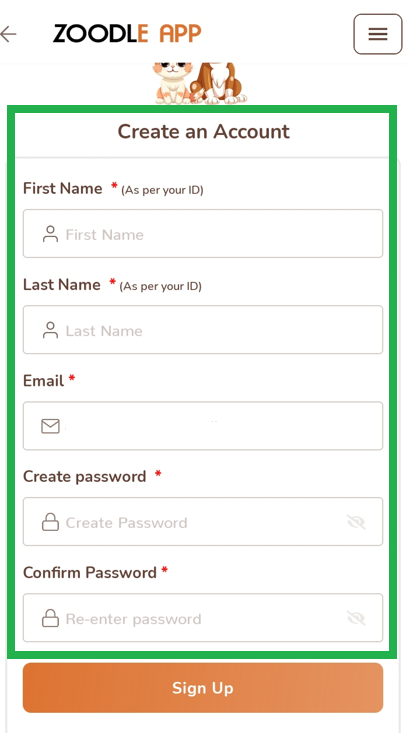
• Next, provide the required information to complete the account creation process.
• After completing the required information, please click the "Sign Up" button to finalize your account creation.
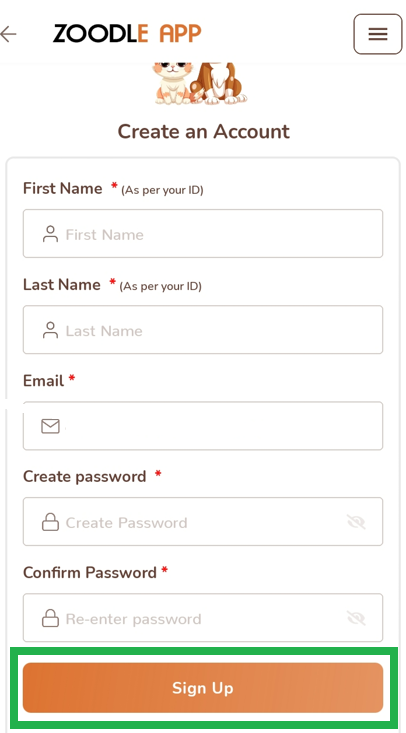
• Upon clicking the "Sign Up" button, a verification link will be sent to your email. Please verify your account using the link provided to complete the sign-up process.
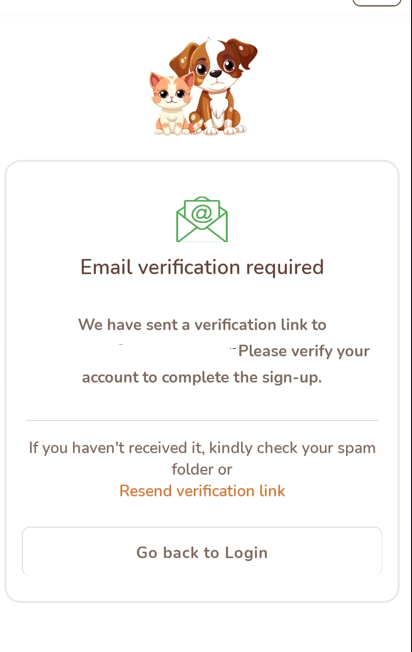
• To verify your account, please check your email and click on the confirmation link provided.
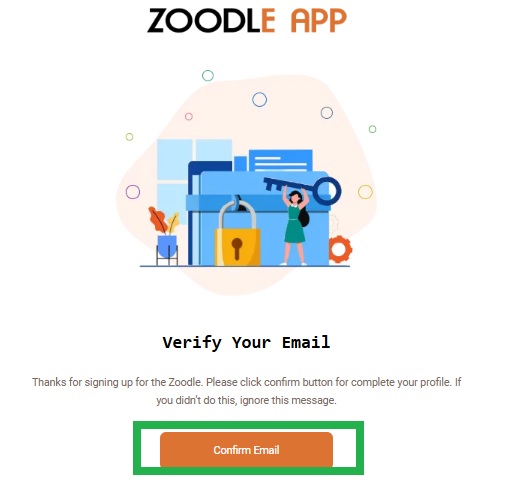
• Once your email is verified, you will gain access to your account.
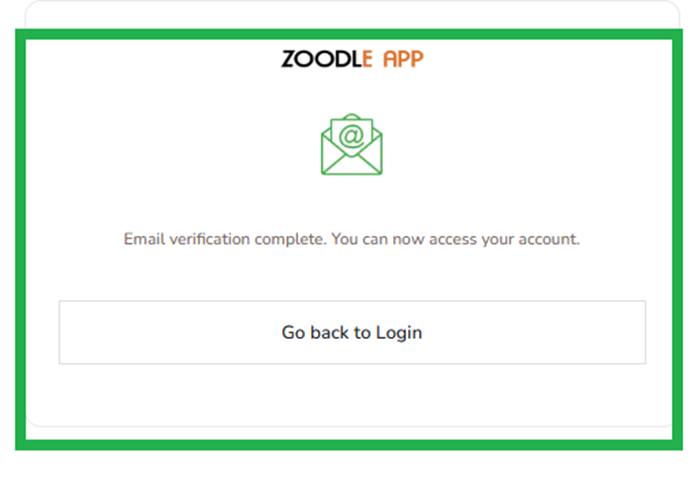
• You may now access your account by clicking the "Login" button.
welcome to the Zoodleapp.com website. You can sing up for a free account and access our services.
Steps to create an account on the Zoodleapp.com website.
• To begin, please click on the "Join Now" button located in the top-right corner of the page.
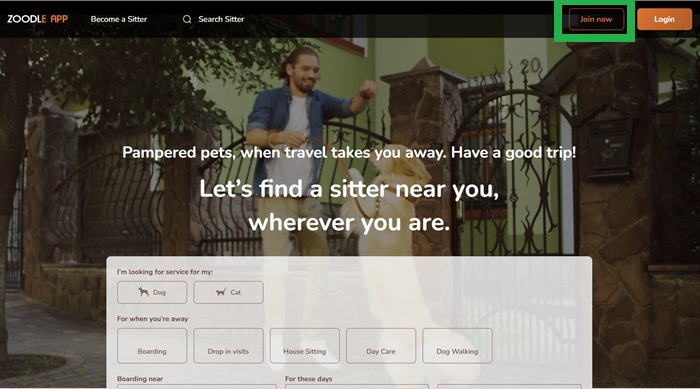
• Upon clicking the "Join Now" button, you will be prompted to enter your email address.
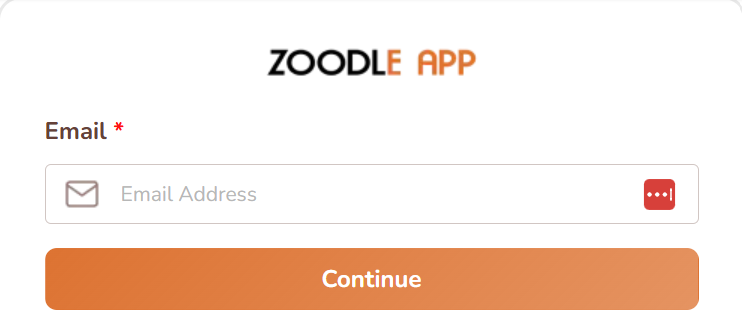
• Please provide your email address in the designated field to create your account.
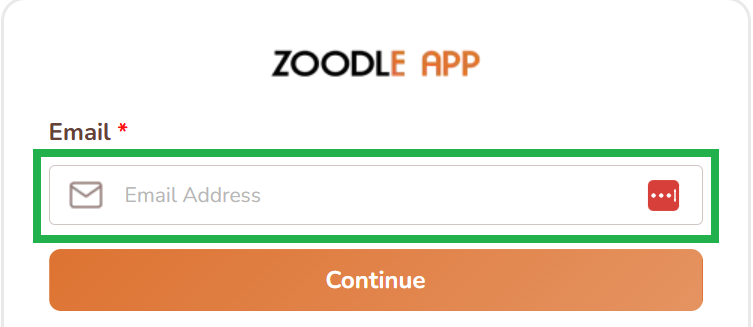
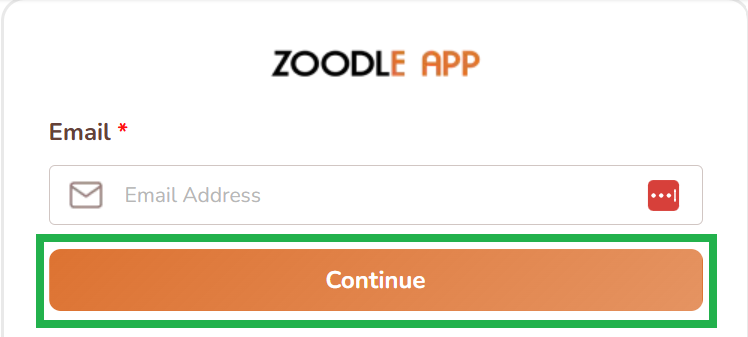
• once you have entered your email address, and then click the "Continue" button.
• next, provide the required information
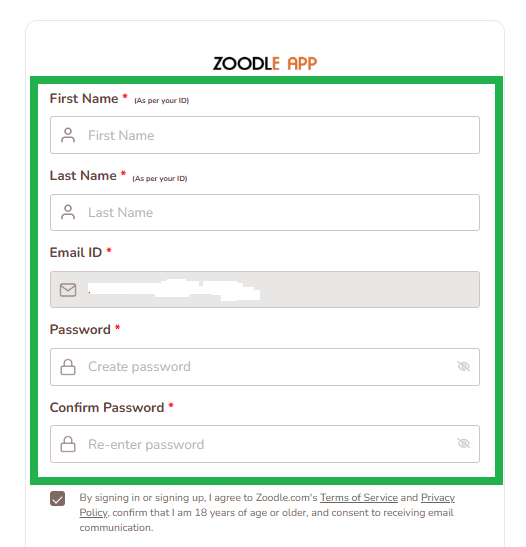
• Once you have completed all the required information, please click the "Join Now" button.
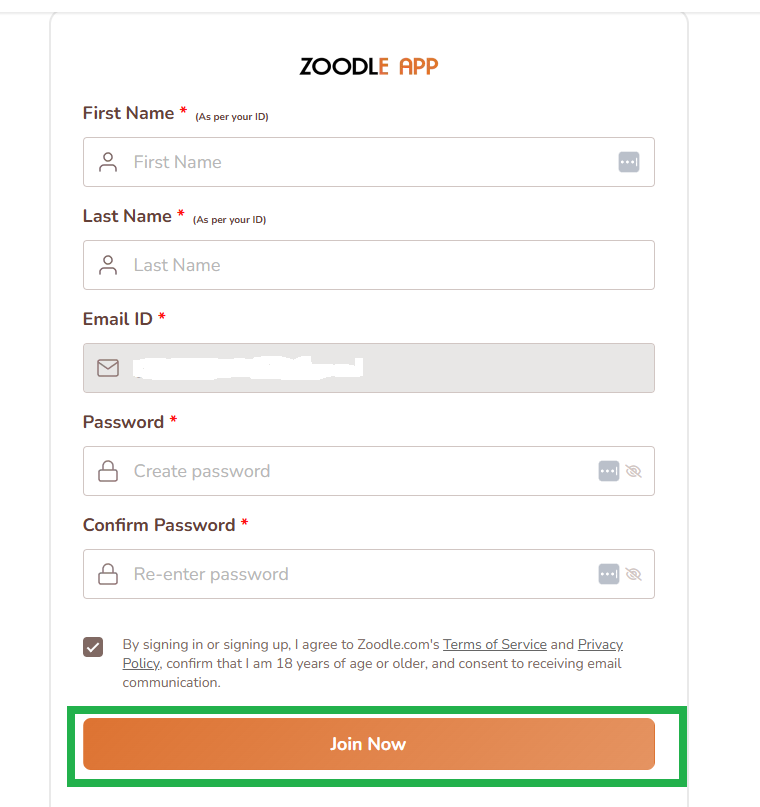
• Upon clicking the "Join Now" button, a verification link will be sent to your email address.
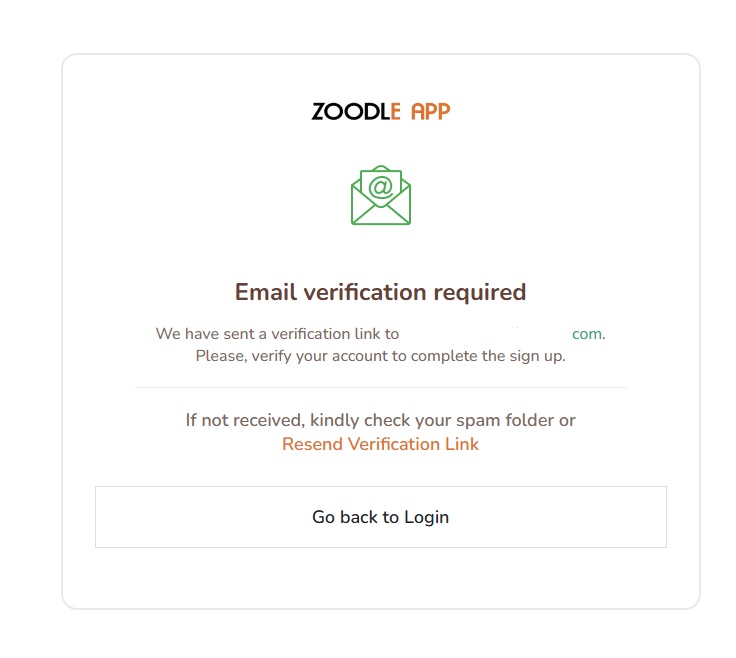
• Please verify your email address to complete the sign-up process.
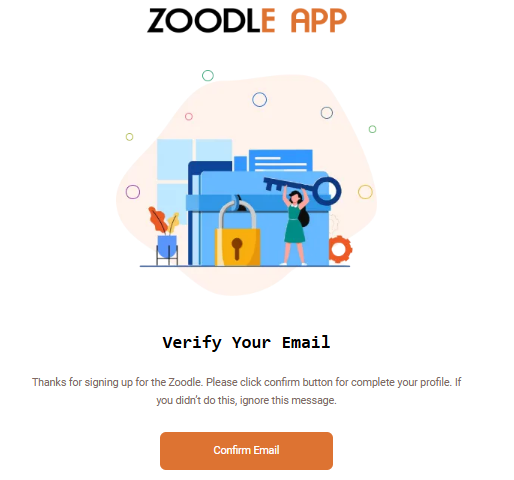
• To verify your email, kindly click on the "Confirm Mail" button.
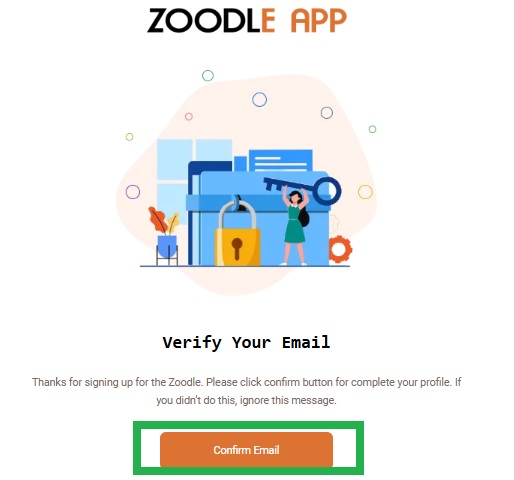
• Once you click on "Confirm Mail," you will gain access to your account.
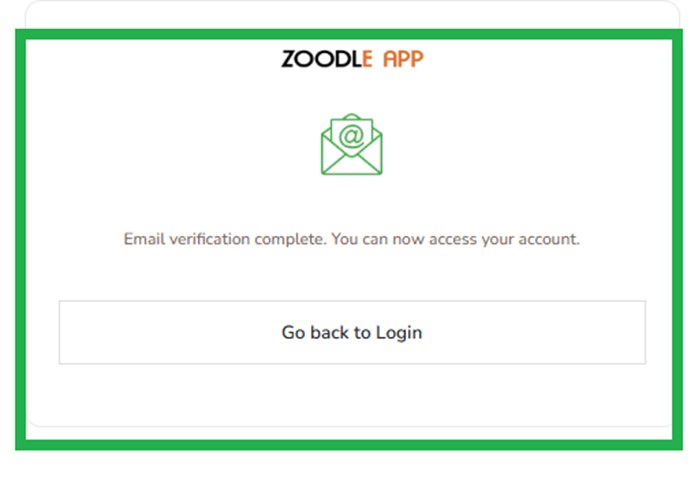
• You may now access your account by clicking the "Login" button.